

If you can already SSH into a Laravel Forge server as the forge user, and sudo then asks for a password you no longer have, that prompt is for the Unix password of the forge account. It is not your Forge website login, and it is not the SSH key you used to connect.
Laravel Forge’s knowledge base is direct: for ordinary provider-managed servers, Forge does not store that sudo password and cannot reset it for you. Since 31 October 2025, there is one official exception: on a Laravel VPS you can reset it from the server dashboard. This guide follows those current docs, and it was prompted by John F. Morton’s Supergeekery post on the same problem.
Confirm what you actually need
You need this guide if you already reach the server as forge (or can get a root console) and only the sudo password is missing. You will also need access to the Forge dashboard for that server, or to the account at the company that hosts the VPS. Check which kind of server it is before you start: a Laravel VPS is provisioned and billed inside Forge, through Forge’s infrastructure partnership with DigitalOcean. A server you created through DigitalOcean, Hetzner, AWS or another linked provider is not a Laravel VPS, even if you manage it in the same Forge account.
| If this is the problem | Use this instead |
|---|---|
| You cannot log into forge.laravel.com | The Forge account password reset page. |
SSH as forge is refused, or the server shows as disconnected in Forge | SSH keys and Forge’s disconnected-server checks. Add your public key under the server’s Settings, in the SSH tab. The sudo password does not get you a shell when key authentication has failed. |
| A MySQL, MariaDB or PostgreSQL user password is wrong | The password reset on the server’s Databases tab. Forge can reset the root and forge database users there. Do not change those two database passwords outside the dashboard, because that breaks Forge’s own database access. |
| An isolated site user cannot run a command | That site has its own Unix user. The forge sudo password does not automatically apply to it. Forge’s user isolation docs cover how those accounts work. |
forge sudo password.The official dashboard reset, for Laravel VPS only
If the server is a Laravel VPS, open it in Forge, click Settings, and look in the Danger Zone for Reset sudo password. Click Reset password. Forge documented this control in its 31 October 2025 changelog, and the Laravel VPS page is the current official route. Follow whatever the dashboard shows after you confirm, and store the new password in a password manager.
If that button is not there, use the provider path below rather than hunting for a hidden control.
Other servers: regain root, then set the password
On a server Forge provisioned through a linked provider, the official steps are: get a root shell through that provider, then run Ubuntu’s passwd command as root. The superuser may change any account’s password and is not asked for the old one. You will be prompted twice for the replacement. Ubuntu’s passwd manual also notes that a password can be rejected if it is not complex enough; if that happens, choose a stronger one and run the command again.
passwd forgeA provider web console that already opens as root is enough. Skip a Forge Recipe and run the confirm script below, or passwd forge, in that shell.
On DigitalOcean, open the Droplet in the control panel and use the Droplet Console. Click Web Console, or Actions and then Connect. DigitalOcean documents this as one-click SSH, with no password and no manual SSH key setup. It uses the Droplet agent, which is installed by default on Droplets created after August 2021, and the agent retrieves session keys from the metadata service. A DigitalOcean engineering post explains that the browser generates a temporary key pair for the session, rather than reusing the SSH keys you added when the Droplet was created. On most DigitalOcean-provided images the default SSH user is root, so this console often opens a root shell. The console still needs network access to sshd and to the metadata service.
That is not the Recovery Console, which is an out-of-band session and requires a root or sudo password. If you have never set one, DigitalOcean documents resetting the root password in the control panel first, then logging in there.
Other IaaS and PaaS panels have similar browser consoles, including AWS EC2 Instance Connect, Hetzner’s console, the Vultr web console and Linode/Akamai LISH. They do not all drop you into a root shell without a password. AWS documents Instance Connect as logging in as the image’s default user, such as ubuntu or ec2-user. Hetzner’s console and Linode’s LISH web console still ask you to log in, often as root with a password. If you land as a non-root user, sudo -i will not help without the password you are trying to reset; use the provider’s documented root or recovery login, then run the script.
If the Droplet Console is not available, or it does not open a root shell, Laravel Forge’s knowledge base gives these DigitalOcean steps. In the DigitalOcean dashboard, open the Droplet, go to the Access tab, and click Reset Root Password. That operation usually restarts the Droplet and emails a new root password to the address on the DigitalOcean account. Still on the Access tab, click Launch Droplet Console to open a terminal as root. You will be asked to set the root password again. Then, as root, run passwd forge.
For Hetzner, AWS or another provider, if the web console did not already give you a root shell, use that company’s documented root or recovery login, then run the same passwd forge command. Do not invent a restart or email step that the provider has not documented for that console.
Set, print and confirm from a root shell
Once you have a root shell through the provider console or root SSH, this script sets the forge user’s password, prints the new value once, and checks that sudo accepts it. Press Enter to generate a random password, or type one of your own (the input is hidden and you will be asked to confirm it). Run it as root on the server. It is not a Forge Recipe: do not paste it into the Recipes page, and do not put the printed password in a ticket or a chat.
#!/bin/bash
# Set the forge user's sudo password, print it once, and confirm it works.
# Run as root on the server, from a provider console or a root SSH session.
# Do not save this run (or the printed password) in a Forge Recipe or ticket.

set -eu
set +x
set +o history 2>/dev/null || true
PATH=/usr/sbin:/usr/bin:/sbin:/bin
trap 'unset -v PW PW2' EXIT

if [ "$(id -u)" -ne 0 ]; then
  echo "FAILED: run this as root (provider console or root SSH)." >&2
  exit 1
fi

user=forge
if ! id "$user" >/dev/null 2>&1; then
  echo "FAILED: no user named $user on this server." >&2
  exit 1
fi

printf 'Press Enter to generate a strong random password, or type one (input is hidden): ' >&2
IFS= read -r -s PW || true
printf '\n' >&2

if [ -z "${PW}" ]; then
  if ! command -v openssl >/dev/null 2>&1; then
    echo "FAILED: openssl is required to generate a password. Install it, or type a password of your own." >&2
    exit 1
  fi
  PW=$(openssl rand -base64 24 | tr -d '\n')
else
  printf 'Type it again: ' >&2
  IFS= read -r -s PW2 || true
  printf '\n' >&2
  if [ "$PW" != "${PW2-}" ]; then
    echo "FAILED: the two passwords did not match." >&2
    exit 1
  fi
fi

if [ -z "${PW}" ]; then
  echo "FAILED: the password was empty." >&2
  exit 1
fi
case "$PW" in
  *:*)
    echo "FAILED: the password must not contain a colon; chpasswd treats that as a separator." >&2
    exit 1
    ;;
esac

if ! printf '%s:%s\n' "$user" "$PW" | chpasswd; then
  echo "FAILED: chpasswd could not set the password for $user." >&2
  exit 1
fi

echo "New sudo password for ${user}:"
printf '%s\n' "$PW"
echo "Save it in a password manager now, then clear this terminal's scrollback."

status=$(passwd -S "$user")
echo "passwd -S: $status"
case "$status" in
  "$user P "*|"$user P	"*)
    ;;
  *)
    echo "FAILED: passwd -S did not report a usable password (P) for $user." >&2
    exit 1
    ;;
esac

verify() {
  if command -v runuser >/dev/null 2>&1; then
    printf '%s\n' "$PW" | runuser -u "$user" -- bash -c 'sudo -k; sudo -S -v'
  else
    printf '%s\n' "$PW" | su - "$user" -c 'sudo -k; sudo -S -v'
  fi
}

if verify; then
  echo "SUCCESS: the ${user} user's password is set and sudo accepted it."
  exit 0
fi

echo "FAILED: the password was set, but sudo did not accept it. The password printed above is still the one that was stored; save it and investigate sudoers for $user." >&2
exit 1
A line starting SUCCESS: means the password is set and sudo accepted it. A line starting FAILED: means you should not assume sudo will work yet. If the password was already stored but the sudo check failed, the script still prints the stored password so you can save it. Copy that value into a password manager first, then clear the terminal’s scrollback, or close the console session. The script unsets its password variable when it exits, and it does not write the password to a file.
Ubuntu’s interactive passwd forge command, shown above, remains the official one-line method if you would rather type the password twice at its own prompt and skip the printed confirmation.
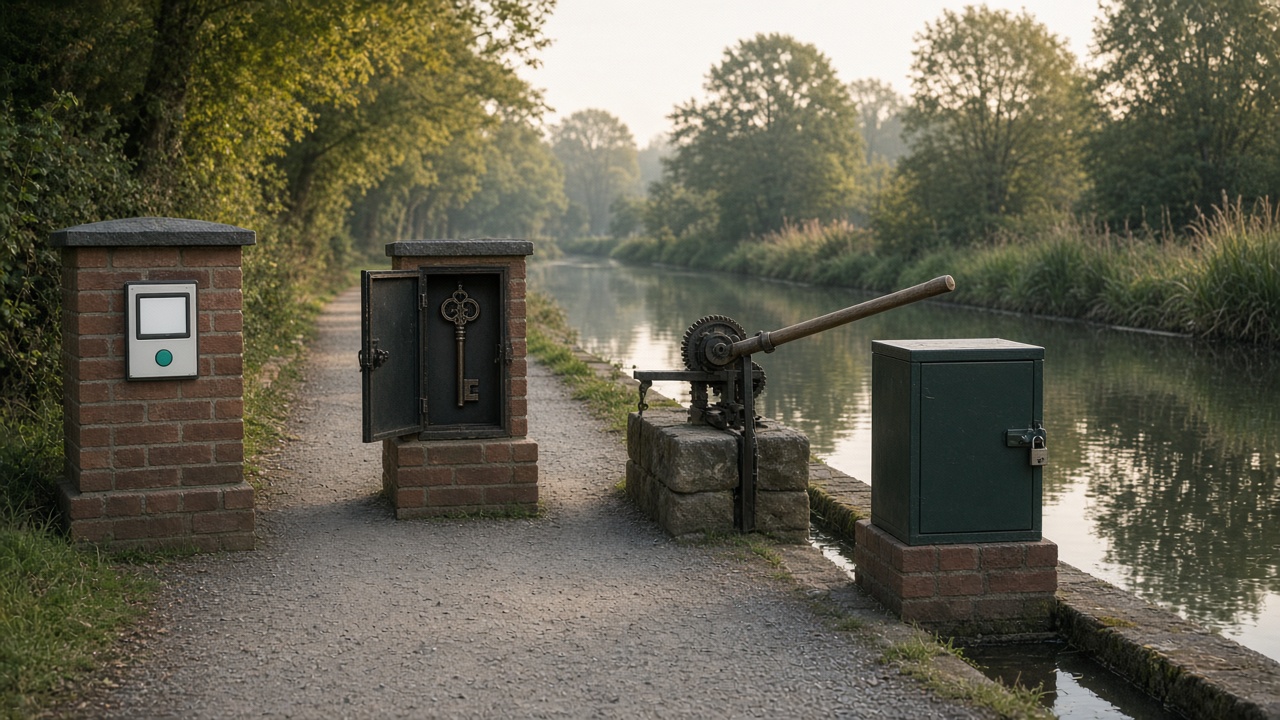
| Station | What it shows |
|---|---|
| The teal button | On a Laravel VPS, reset the forge sudo password from the server Settings Danger Zone. |
| The open key cabinet | On other providers, Forge does not store that password. Regain a root shell through the provider. |
| The lock gear | As root, run the confirm script, or passwd forge. Ubuntu does not ask for the old password. |
| The closed lockbox | Store the new password in a password manager. Don’t paste it into chat, tickets, email or a saved Forge Recipe. |
After the password is set
Keep the new password in a password manager. Don’t paste it into chat, support tickets, email, or a reusable script. If you used the confirm script, clear the terminal’s scrollback or close the console after you have saved the value. SSH back in as forge with your key, then confirm sudo works, for example with sudo -v or sudo whoami. A working sudo prompt does not replace SSH keys; you should still sign in with a key. If you also rotated the DigitalOcean root password, store that separately from the forge sudo password.
Why a saved Recipe is a poor place for this
Morton’s Supergeekery post suggested a Laravel Forge Recipe that runs as root and feeds a new password to chpasswd. Recipes can run as a chosen user, including root, and they will work only while Forge can still reach the server. If a provider web console already gave you a root shell, you do not need a Recipe: run the confirm script there. The script also uses chpasswd, but you run it yourself at that console or over root SSH, so the new password is not stored in Forge. Do not paste that script into a Recipe.
A Recipe is stored in your Forge organisation, can be shared with teams by default, and keeps run logs. Putting a plaintext sudo password in that script leaves the secret in the control panel. A one-line echo into chpasswd can also break on special characters; the confirm script feeds the password on standard input and rejects a colon, which chpasswd would treat as a separator. If you already saved a Recipe that contains a password, delete it after you have set a new password from a root shell, and treat the old password as exposed.
If something still fails
| If this happens | Check |
|---|---|
| There is no Reset sudo password control in Settings | The server may not be a Laravel VPS. Use the provider root console and the confirm script, or passwd forge. |
| The DigitalOcean Web Console already opened a root shell | Skip Reset Root Password and a Recipe. Run the confirm script, or passwd forge. |
| The DigitalOcean Droplet restarted after Reset Root Password, and mail arrived with a root password | That is what Forge’s DigitalOcean steps describe. Open the console, set the root password when asked, then run passwd forge. |
passwd rejects the new value | Ubuntu can refuse a password that is not complex enough. Choose a stronger one and run the command again. |
| Forge cannot connect to the server at all | Restore SSH and Forge’s own key access first, using the disconnected-server checks. You cannot manage the server from the dashboard until that is fixed. |
Sudo works as forge, but an isolated site user is still blocked | That is a different Unix account. Resetting the forge password does not change it. |
The pages to keep are Laravel Forge’s knowledge-base note on the forge sudo password, the Laravel VPS reset control, and the SSH keys documentation.
Discover more from Sulat AI & Tech News
Subscribe to get the latest posts sent to your email.