
Microsoft has added Remote lock to Windows, a feature that lets IT admins lock a lost or stolen PC from Microsoft Intune without wiping it, according to its Learn page and the release notes for Windows 11 Insider build 29708.1001. The build went out on 13 November to the Experimental (Future Platforms) channel, and Microsoft labels the feature Preview.
Yutaro Tamai, a Microsoft MVP for security, Windows and devices, flagged it on X on 13 November. In Japanese, he says Remote lock is now in Preview in the Windows 11 Insider builds and that he’s glad to see it.
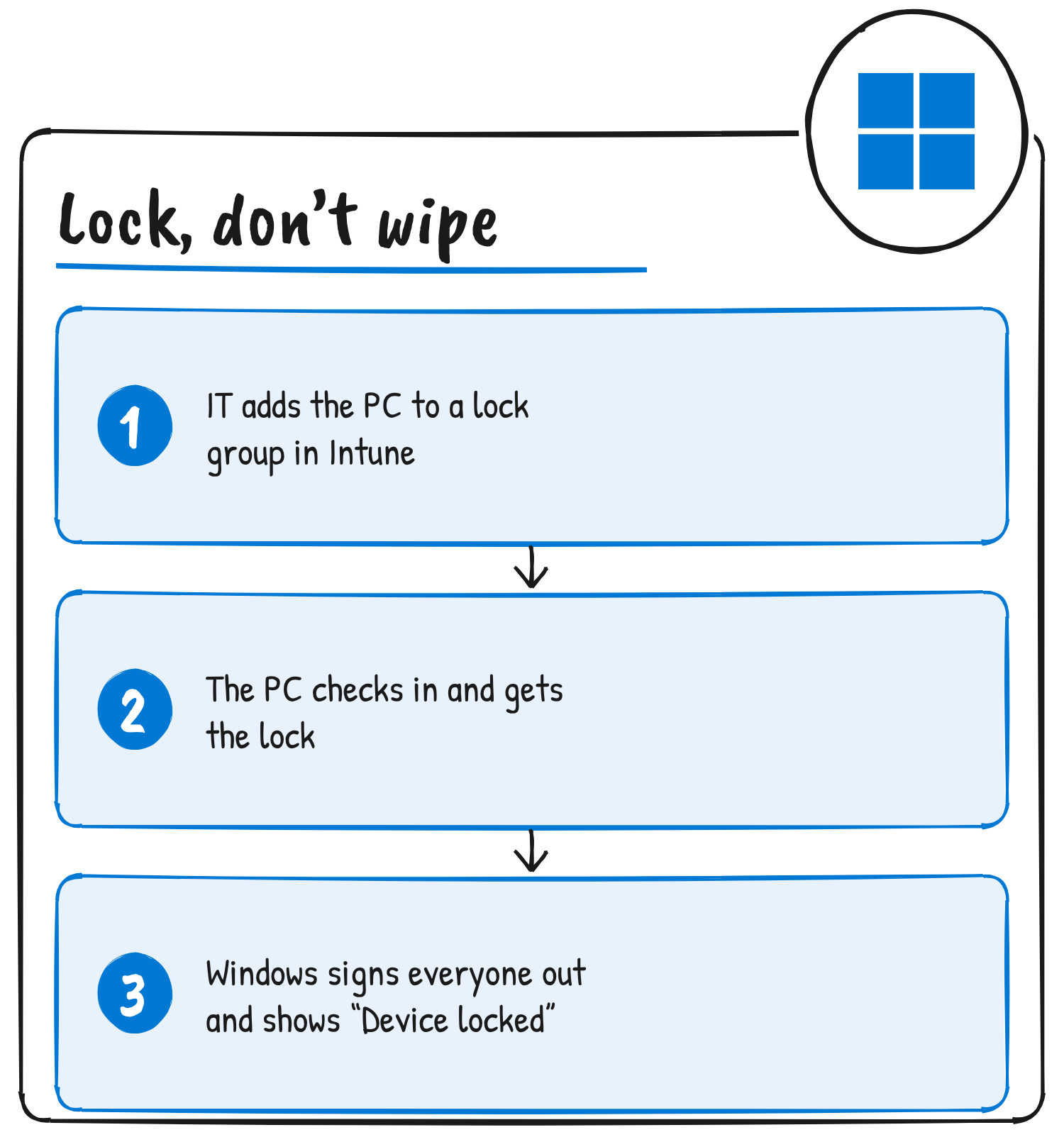
How an admin locks a PC
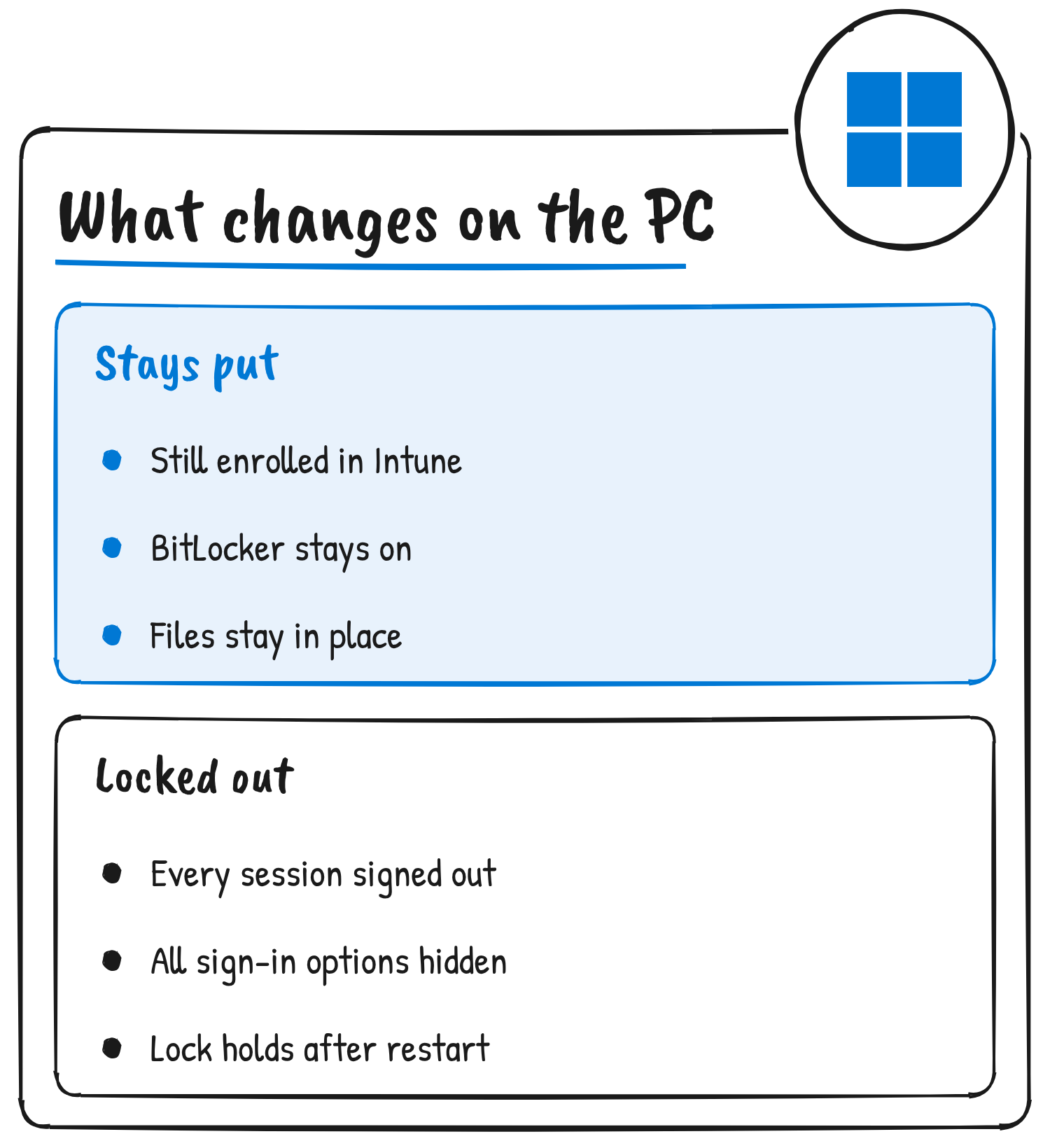
Microsoft says Remote lock signs out every active session, hides all sign-in options and shows a locked screen. Nothing is erased. The device stays enrolled and managed, BitLocker (Windows’ drive encryption) stays on and user data stays in place. The lock holds across restarts and while the device is offline, and only an admin can lift it remotely.
In the preview there’s no dedicated button in Intune. Admins set it up with a custom configuration profile that uses a Windows setting called RemoteDeviceLock. Devices must be Microsoft Entra joined, hybrid joined or MDM-enrolled, and run Windows Enterprise, Education or Pro.
Microsoft’s steps are to create a Custom profile under Devices, Windows, Configuration in the Intune admin center, set LockState to 1 and assign the profile to a device group reserved for locked devices. Adding a PC to that group locks it at its next check-in. To unlock, an admin creates a second profile with LockState set to 0, assigns it to an unlock group and moves the PC across.
| Setting | OMA-URI | Type | Value |
|---|---|---|---|
| Lock state (required) | ./Device/Vendor/MSFT/RemoteDeviceLock/LockState | Integer | 1 locks, 0 unlocks |
| Lock reason (optional) | ./Device/Vendor/MSFT/RemoteDeviceLock/LockReason | String | Reason shown on the lock screen, up to 1,024 characters |
| Recovery hint (optional) | ./Device/Vendor/MSFT/RemoteDeviceLock/RecoveryHint | String | Help desk contact, up to 256 characters |
A read-only Status node reports where the lock stands: 0 for unlocked, 1 for locked, 2 for lock pending and 3 for error.
What the user sees
The default lock screen reads: “Device locked. Your organization has locked this device. Contact your organization’s IT support for help unlocking this device.” The LockReason and RecoveryHint settings let an admin add their own reason and a help desk contact to that screen.
What it doesn’t cover
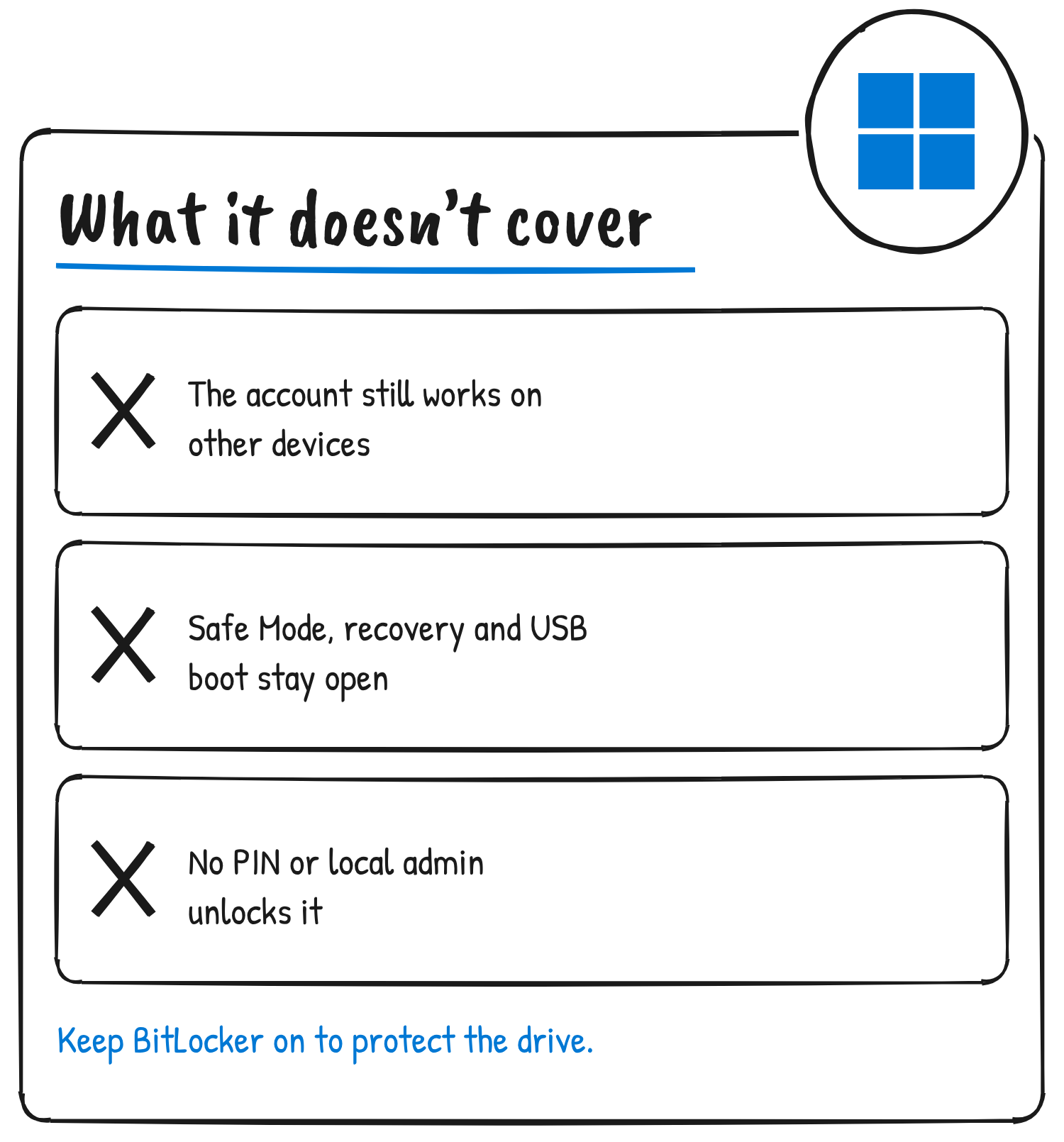
Microsoft’s page lists four limits. The user’s account isn’t touched, so credentials stay valid and the user can still sign in on other devices; Microsoft says to use Microsoft Entra ID to disable the account or revoke sessions. Remote lock doesn’t isolate the device from the network or erase data, and Microsoft points to existing Intune controls for that.
There’s also no offline or local unlock. No PIN, password, local admin or web sign-in works on a locked device, and the unlock arrives only through Intune. Boot and recovery paths aren’t blocked: Windows Recovery Environment, Safe Mode and booting from USB or other media all stay open. Microsoft says to keep BitLocker on to protect the data if the drive is removed or the device is reimaged.
How it differs from Intune’s existing Remote lock
Intune already has a Remote lock device action. Microsoft’s page for it lists Android Enterprise, Android Open Source Project, iOS/iPadOS, macOS and visionOS 2.0 and later. Windows isn’t on that list. The page also says the action is only effective if a passcode or PIN is already set, because without one the screen may just turn off and the user can still get in.
Where it’s available
Build 29708.1001 is in the Experimental (Future Platforms) channel. Microsoft says builds there represent platform changes early in the development cycle, shouldn’t be matched to any specific release of Windows, and include features that “might never get released.” The Learn page’s Applies to line lists Windows 11, Windows 10 and Windows Server 2016, 2019 and 2022.
Microsoft hasn’t announced a general release date for Remote lock or a button for it in the Intune admin center.
Discover more from Sulat AI & Tech News
Subscribe to get the latest posts sent to your email.