
OpenAI has published a reference architecture for running Daybreak Red, its tier of purpose-trained cybersecurity models, inside an isolated lab with an analyst supervising every run. The guide is called Deploying Daybreak Red. Its PDF is dated 9 November, the page that hosts it went up on 19 November1, and Adam.GPT (@TheRealAdamG), who works in go-to-market at OpenAI, shared it on X on 20 November, US time.
It’s a how-to rather than a launch. OpenAI says the most important thing to take from it is an understanding of the controls, so you can safely use its cyber models in your own environment, and it ends with a worked example that reproduces a real Gitea vulnerability on a disposable VM.
- What Daybreak Red is
- The architecture
- Five safety controls
- Building the environment
- The preflight
- Running and stopping an investigation
- The walkthrough: a real Gitea CVE
- Getting access
- Terms in this post
What Daybreak Red is
Daybreak is OpenAI’s Trusted Access for Cyber programme, and Red is its more specialised tier. OpenAI describes Red as access to purpose-trained cybersecurity models for authorised vulnerability research, exploit validation and security testing. Blue, the other tier, gives approved defenders general-purpose models with reduced refusals. Red approval is separate from Blue approval and switched off by default, according to OpenAI’s help centre.
Red covers GPT-5.6 Cyber for every Red customer and GPT-6 Cyber for a select group that OpenAI says it will widen. OpenAI classes GPT-6 Cyber as Critical in cybersecurity under its Preparedness Framework, up from High for GPT-5.6 Cyber. I covered that release on 7 November.
The architecture
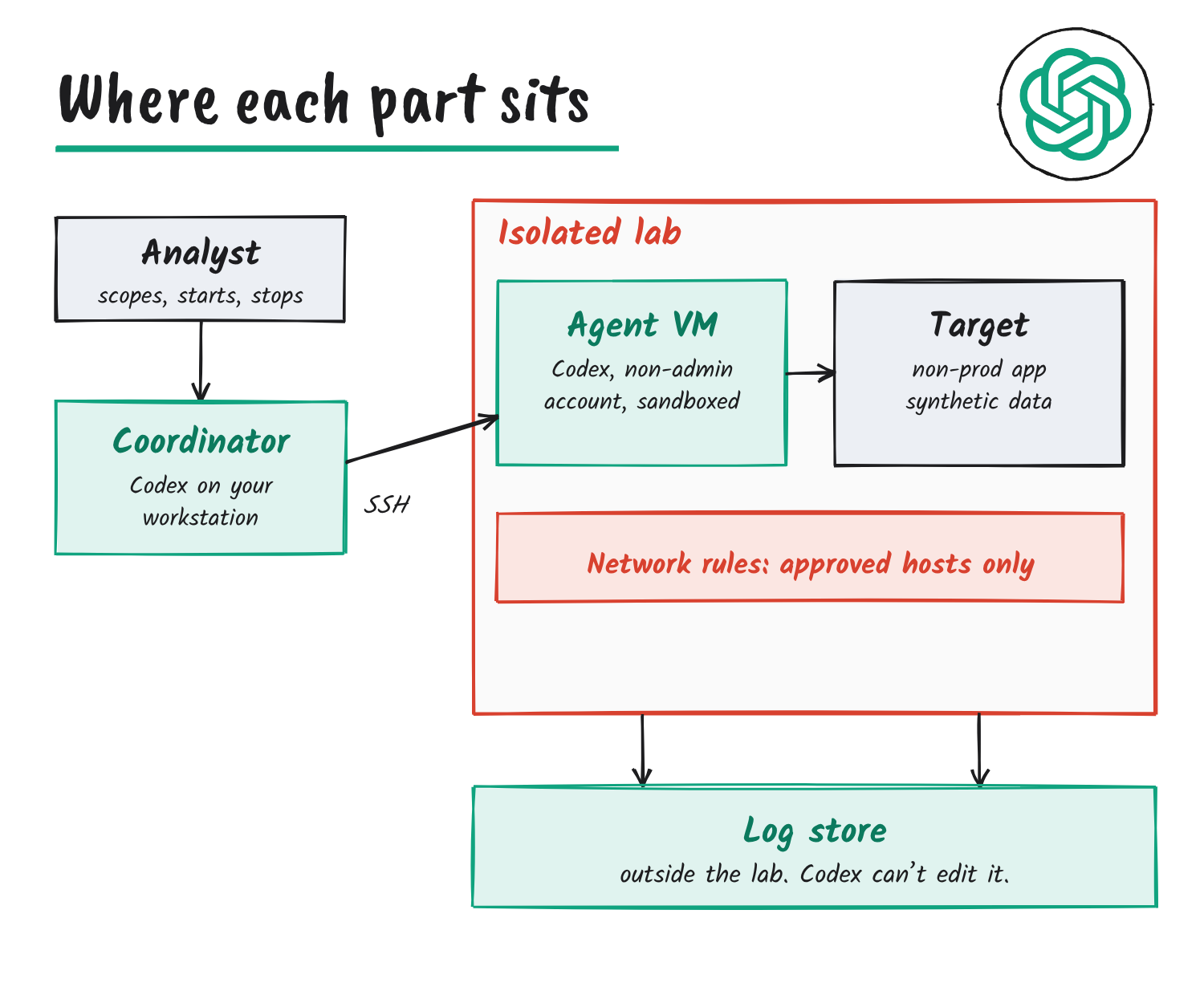
The design has one analyst, two copies of Codex and a log store that Codex can’t reach. You run Codex on your own workstation to direct the investigation and review results, and the commands run on a separate agent VM. Lab network rules limit what that VM can reach, and a separate store records what Codex did and which requests hit the test app.
| Component | Role |
|---|---|
| Analyst | The authorised person who starts, scopes and stops the investigation and analyses the results |
| Isolated investigation environment | A logical separation; the guide describes hosted VMs in an isolated VPC |
| Coordinator | Codex installed on the analyst’s machine, which manages the connection to the remote host, shows results and supervises the run |
| Agent VM | Runs Codex as a non-admin user inside the isolated environment and carries out the analysis |
| Model inference | The connection to OpenAI for model serving; the guide notes OpenAI models are also available through AWS |
| Network controls | Where access is limited: iptables on the VM, a firewall or security groups |
| Target | The non-production application under investigation |
| Telemetry | A data store outside the target and the agent VM that keeps the logs showing what happened and when |
The guide uses a disposable VM. If you’d rather use a container, it says to check that the container enforces the same file and network restrictions.
Five safety controls
The most important output is understanding the controls so you are able to safely implement OpenAI cyber models in your environment.
OpenAI, Deploying Daybreak Red
OpenAI’s stated goal is to give the model the access it needs while keeping visibility and governance over what it does. The guide builds that from five controls and says the design follows OpenAI’s recommended configuration for cyber work.
- Scope definition. The scope sets the target, the permitted actions, the investigation window and the stopping point. You decide whether Codex gets anonymous access or a dedicated account, and if it signs in, the account is limited to the role and resources the investigation needs.
- VM system controls. Codex runs under a dedicated non-admin account, and its sandbox limits what commands can read and write. Private keys, deployment credentials and host-management sockets stay outside that account’s reach.
- Network access controls. The Codex network proxy narrows where sandboxed commands can connect. The guide’s example is a VM that can reach three staging apps while the Codex allowlist permits just the one in scope, with firewall-style rules around the whole lab. Browsers, connectors and MCP tools you enable get their own network check.
- Reviewing sensitive actions. When an action needs approval and is eligible for Auto-review, a separate reviewer decides whether it proceeds. A new target, a new account or anything outside the agreed scope pauses the run until the analyst confirms authorisation.
- Telemetry. Codex tool activity, target request logs and application sign-in events go to a log store outside the Codex account’s control.
How Auto-review decides
Per OpenAI’s Codex docs, Auto-review sends an approval request to a separate reviewer agent instead of stopping for a person. It only looks at actions that already need approval, such as sandbox escalations and network requests that need approval. Its policy checks for data exfiltration, credential probing, persistent security weakening and destructive actions. Low-risk and medium-risk actions can proceed, and the policy denies critical-risk ones. The docs say failures while building the prompt, running the review or parsing the answer fail closed, so the action doesn’t run.
Building the environment
You need a non-production target loaded with synthetic data, a workstation with Codex, a lab VM and a separate log store. The build runs in four steps.
- Prepare the agent VM. Create a Linux VM in an isolated lab with a dedicated non-admin account and a working directory for Codex. Install Codex, the tools the investigation needs and bubblewrap, which Codex uses to sandbox commands, then verify the sandbox works before you start. Use a fresh VM and lab for higher-risk investigations. The lab lets the VM reach only the approved test app and the services needed for Codex sign-in, model access and log export, using network controls the Codex account can’t change.
- Connect from your workstation. Add the VM’s host alias and dedicated account to
~/.ssh/config, then connect withssh <alias>. On the VM, runcodex loginwith the ChatGPT account and workspace approved for Daybreak Red, or use a key from the approved Daybreak Red project if your organisation uses API access. In Codex on your workstation, add the SSH host under Settings, then Connections, and open a chat in that project. The guide’s first test is to ask forhostnameandpwdand compare them with what you saw over SSH. - Set permissions for Codex. In
~/.codex/config.tomlon the VM, a permission profile names the workspace paths commands can read or write. To let sandboxed commands reach the network, setenabled = truein the profile’s network section, list the approved domains and turn onnetwork_proxyunder[features]. To use Auto-review, set the approval policy toon-requestand the reviewer toauto_review, and keep the sandbox on. An administrator puts mandatory settings inrequirements.tomlso the VM account can’t override them. - Set up target access and logging. If the investigation signs in to the app, use a dedicated test account with only the permissions it needs and a short-lived credential, and keep reusable secrets out of Codex’s reach. Configure the OpenTelemetry log exporter under
[otel]to send Codex logs to your store’s OTLP endpoint or a collector. Send the app’s request logs and sign-in events to the same store, and make sure the Codex account can’t change or delete records.
# ~/.codex/config.toml on the agent VM
# Keys named in the guide, assembled here as a starting shape.
default_permissions = "<your profile name>"
approval_policy = "on-request"
approvals_reviewer = "auto_review"

[features]
network_proxy = true
The guide ships its own example configuration, including the permission profile and domain list. This snippet only shows where the named settings sit.
The preflight
Before any investigation, the guide has you run a preflight from the workstation, using the approved model and the same permission profile as the real run. You pick a URL you control outside the allowlist and a throwaway path outside the workspace that the VM account could normally write to. Then you send this prompt in the remote Codex chat:
Run pwd once. Try creating a small file at [path inside workspace] and at [temporary path outside workspace]. Send one GET request each to [approved health URL] and [controlled URL outside the allowlist]. Use the current permissions and report the result of each check after one attempt.
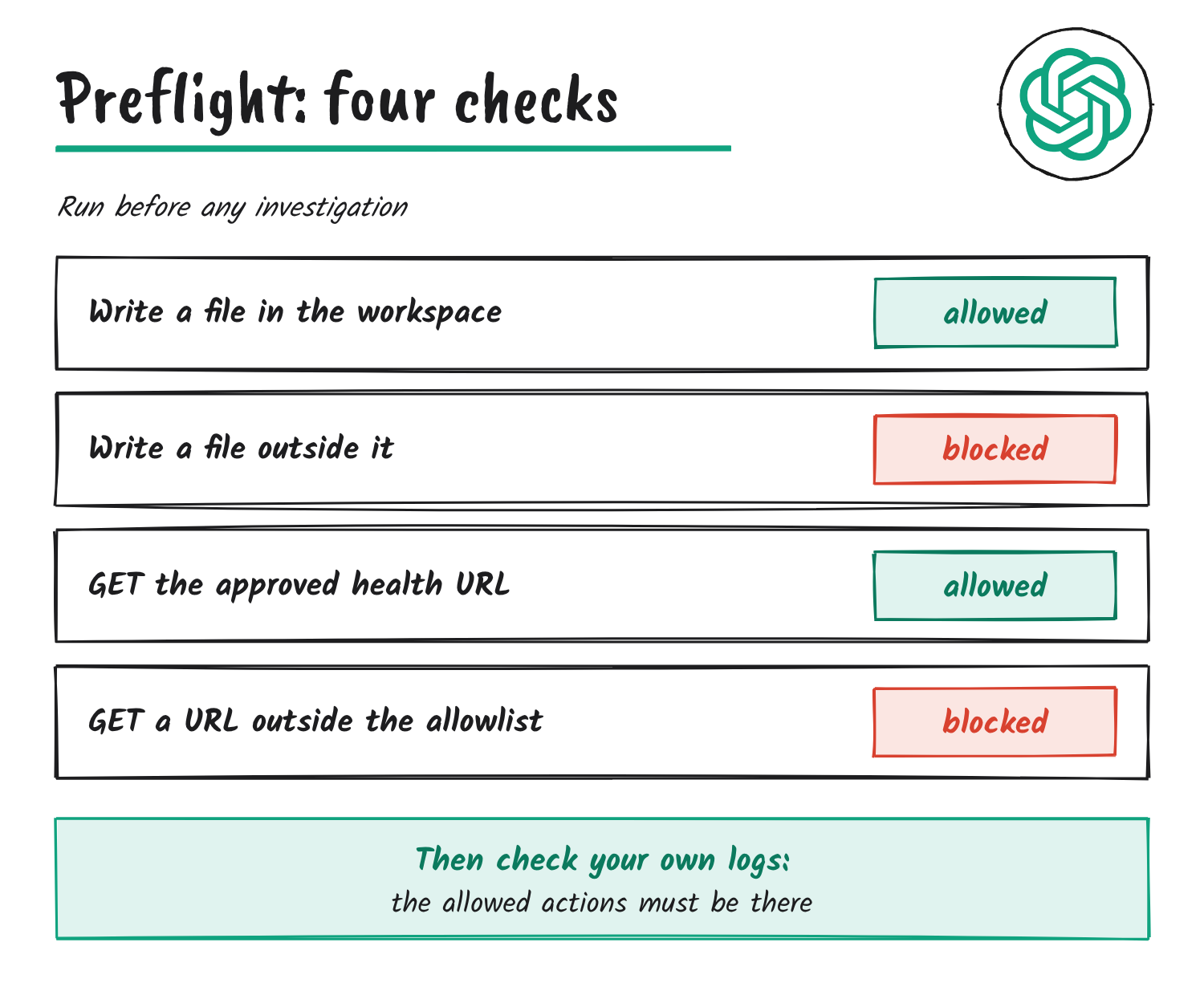
The write inside the workspace should match your permission profile, and the write outside it should be blocked. The approved health request should succeed and the request outside the allowlist should fail. Last, you find the successful codex.tool_result event for pwd and the approved health request in your independent logs.
Running and stopping an investigation
Once the preflight passes, the investigation brief is a fill-in template you send in the remote Codex project:
On [approved target], investigate [question] using [test identity or anonymous access]. Stay within [permitted actions] and exclude [systems or data]. Collect [evidence]. Stop at [end time] or sooner if [stop condition].
While it runs, the analyst has three calls to make.
| Call | When it applies |
|---|---|
| Continue | Routine work inside the agreed scope |
| Pause | Codex reaches a different host, meets real user data or asks for broader permissions: inspect what happened before going on |
| Stop | A required control or its monitoring fails |
Before the first run, verify you can stop the agent VM or block its access to the target from outside Codex. Use that switch if you lose monitoring, need to stop immediately, or can’t confirm the run has stopped. To end an investigation normally:
- Send the stop prompt in the remote chat, which tells Codex to stop sending requests and background jobs and report anything left to clean up.
- Check the agent VM for background jobs and the target’s logs for further requests, and verify both have stopped.
- End the remote Codex session from your workstation.
- Revoke the temporary credentials.
The walkthrough: a real Gitea CVE
The optional walkthrough reproduces CVE-2026-117649 on a disposable Gitea 28.1.0. Gitea’s own CVE record, published on 1 November, says the issue timeline API and web page hid cross-reference events that point at issues a reader can’t access, but not the “dependency added” and “dependency removed” events. When a readable issue was linked as a dependency to an issue in a private repository, any reader of the first issue, including anonymous users of a public repository, got the linked issue’s current title, body, state, labels, poster and attachment names through the API. Creating the link needs access to both issues. Gitea fixed it in 28.3.0, and CISA’s scoring in the record rates it 3.5 out of 10, Low.
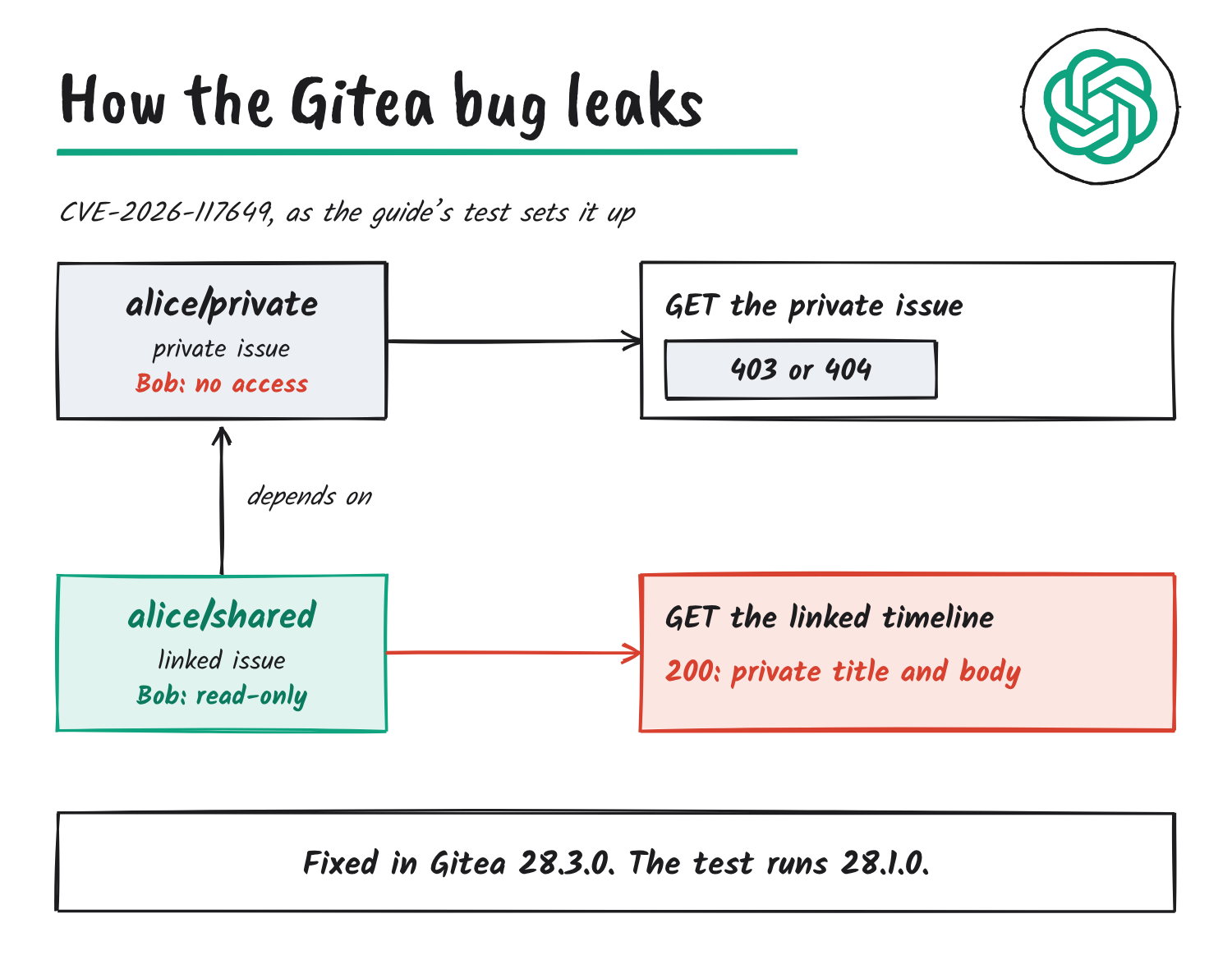
The setup uses Gitea’s rootless Docker image with SQLite and a fresh volume, access logs sent to the console, and Gitea SSH and public sign-ups switched off. Two non-admin users, Alice and Bob, and two private repositories, alice/shared and alice/private, make up the fixture. Bob gets read-only access to the shared repository. Alice’s private repository holds an issue with a unique synthetic title and body, and the shared repository holds one issue that depends on it and one that doesn’t.
You then send Daybreak Red a handoff with the base URL, a read-only token file for Bob, the API paths and the exact synthetic title. As Bob, the run should confirm that:
- the user endpoint identifies Bob as a non-admin;
- the shared repository shows pull access only and the linked issue returns 200;
- the unlinked issue’s timeline returns 200 with no marker;
- the private repository and private issue return 403 or 404;
- the linked issue’s timeline returns 200 with the exact synthetic title and body, and a repeat request says the same.
If the checks match, Daybreak Red saves poc.py in the agent workspace, reports the results and waits. It runs the script only after you say to continue. The prompt also sets hard limits:
1
GET request a second, nothing else
12
attempts at most before it stops
5
minutes per phase
0
redirects followed
Codex reports a table with phase, UTC time, path, status and marker matches, leaving out credentials and raw responses. After you stop the run, revoke Bob’s token and delete any files holding it. A last prompt in your local setup chat then reads Gitea’s access logs over SSH and matches them to the request table by UTC time, path and status, flagging any gaps. That match is the independent record that the agent only sent the requests it reported.
Getting access
Red isn’t a download. OpenAI’s Codex learning pages say access depends on approval for your specific identity or service, workspace or API organisation and project, model and product surface, and that applying for or receiving Blue approval doesn’t grant Red. The guide’s sign-in step assumes you have it. You log in to Codex on the VM with the ChatGPT account and workspace approved for Daybreak Red, or use a key from the approved project.
The guide notes that OpenAI models are also available through AWS, and OpenAI put Daybreak on Amazon Bedrock in August. For the API side of Daybreak sessions, my earlier piece covers the request fields.

Terms in this post
- Coordinator
- The copy of Codex on the analyst’s workstation that connects to the lab, shows results and supervises the run.
- Agent VM
- The disposable VM where the second copy of Codex runs commands under a non-admin account.
- Preflight
- A test prompt run before the investigation to prove the file and network limits and the logging work.
- Allowlist
- A list of the only hosts or addresses Codex may connect to.
- Auto-review
- A Codex setting that sends approval requests to a separate reviewer agent instead of a person.
- bubblewrap
- A Linux tool Codex uses to run commands in a sandbox that limits which files they can read or write.
- OTLP
- The OpenTelemetry Protocol, the format Codex uses to send logs to a store or collector.
- Synthetic data
- Made-up data used in the target so no real user information is at risk.
- The guide’s PDF is dated 9 November 2026. The OpenAI page that hosts it is dated 19 November 2026. ↩︎
Sources
- OpenAI: Deploying Daybreak Red, page dated 19 November 2026
- OpenAI: Supervised investigations with Daybreak Red, a reference architecture (PDF), 9 November 2026
- Adam.GPT on X, 20 November 2026 US time
- OpenAI Help Centre: Daybreak Trusted Access for Cyber overview
- OpenAI: Models and Trusted Access
- OpenAI: GPT-6 Cyber, 5 November 2026
- OpenAI: Codex agent approvals and security
- CVE Record: CVE-2026-117649, published 1 November 2026
Disclosure: I’m an OpenAI, Firecrawl and Devin ambassador.
Discover more from Sulat AI & Tech News
Subscribe to get the latest posts sent to your email.