

1Password’s developer account has published a five-step checklist for reviewing the credentials behind apps, tools and AI agents. The guide, A practical security guide for developers, ends each step with the 1Password product it points to and says where that product stops.
1Password Developers posted it on X on 12 November UTC, which was the morning of 13 November in New Zealand. The post says incidents start with credentials that have too much access, not with sophisticated hacks.
What prompted the guide
The guide’s opening cites two sets of October events. The first is the FBI’s attribution of a theft of “more than $6 billion USD in virtual assets” from the crypto exchange Binance “on or about October 29, 2026” to North Korea, which BleepingComputer reports the bureau published in a security alert on Saturday 31 October. The second is a count by the security firm Wiz, which listed at least nine AI developer platforms that disclosed incidents in October. Wiz’s list has grown since its 30 October post.
The two have no shared cause, and the guide says so: “These were separate incidents with different attack paths.” What it takes from them is a question: “if a credential leaked today, would you know where it’s used, what it can access, and how to replace it?” The guide doesn’t name any of the platforms that disclosed incidents.
Wiz is specific about the platform incidents. It says Fireworks AI, Zeabur and Lightning AI attribute their root causes to credential access, and that all public reports describe attackers hunting stored environment variables, especially ones that grant access to AI models. 1Password’s own 4 November blog post by Mariane Bekker says the public reports don’t establish one attacker or one vulnerability behind the wave.
The five steps
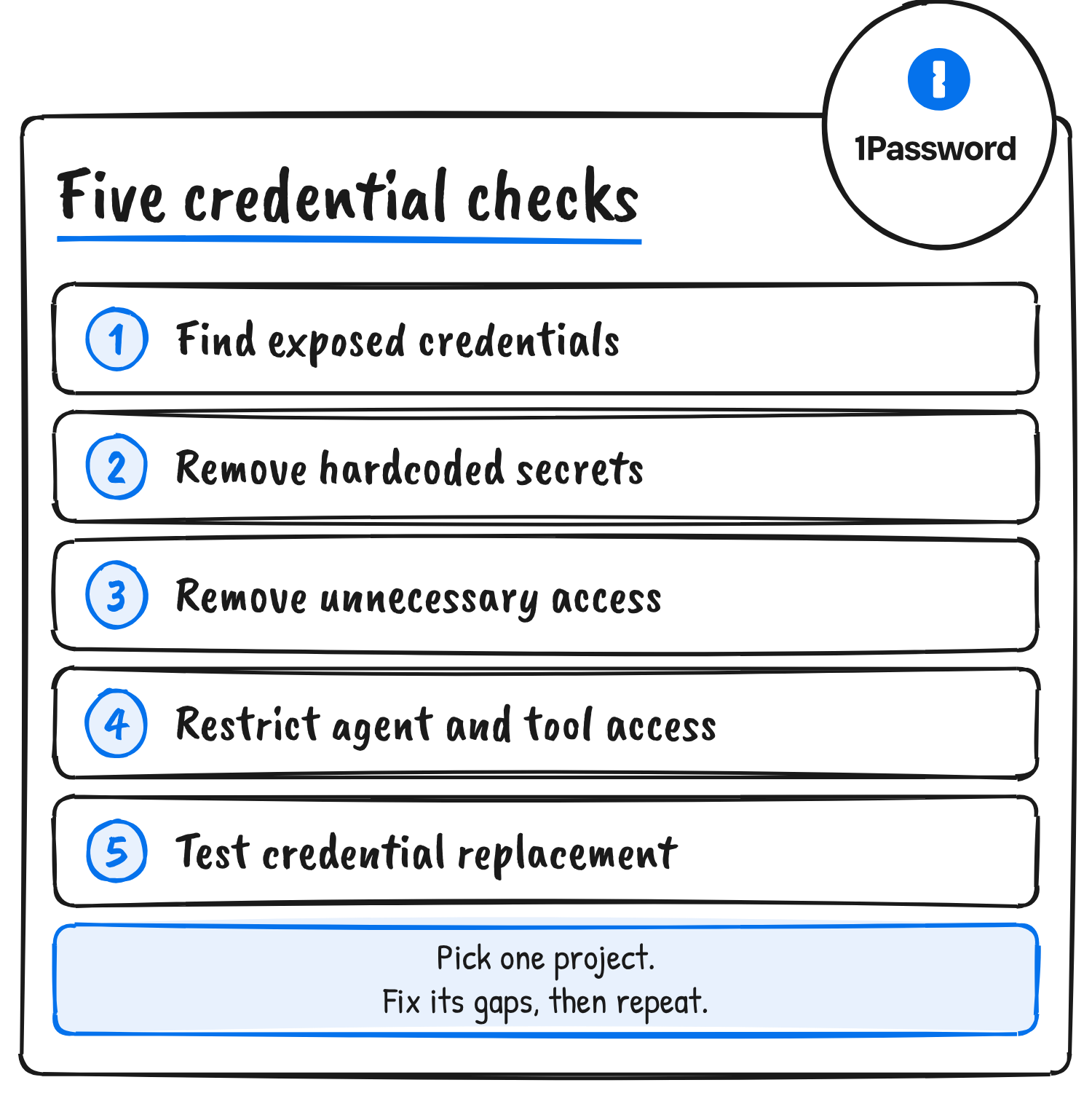
Each step is a short checklist of tasks that don’t depend on a particular tool, followed by a “How 1Password can help” note.
- Find exposed credentials. Scan the current repository and its history with a secret-scanning tool, review .env files, shell profiles, CI settings and deployment configuration, and assign an owner to every active credential. The guide says to keep secret values out of the inventory and record names, owners and storage locations instead.
- Remove hardcoded secrets. Replace plaintext credentials with secret references or runtime delivery, run the application on the new setup, and delete the old plaintext copies. If a value was exposed, confirm the old credential has been revoked.
- Remove unnecessary access. Use development-scoped credentials instead of production ones, a dedicated automation identity instead of personal credentials in automated jobs, and cut permissions a workflow doesn’t need. Set usage alerts and spending limits where a provider supports them.
- Restrict agent and tool access. Take secrets out of prompts and MCP configuration, remove tools and permissions an agent doesn’t need, turn on approval for consequential actions where supported, and test how to stop the agent and revoke its access.
- Test credential replacement. Replace a nonproduction credential, update every application or job that uses it, restart or redeploy, confirm the revoked credential fails, and review provider logs for unexpected activity.
The closing section, “Make it a team task”, asks teams to assign owners and target dates, start with one project and use what they find for the next review.
What each 1Password tool does
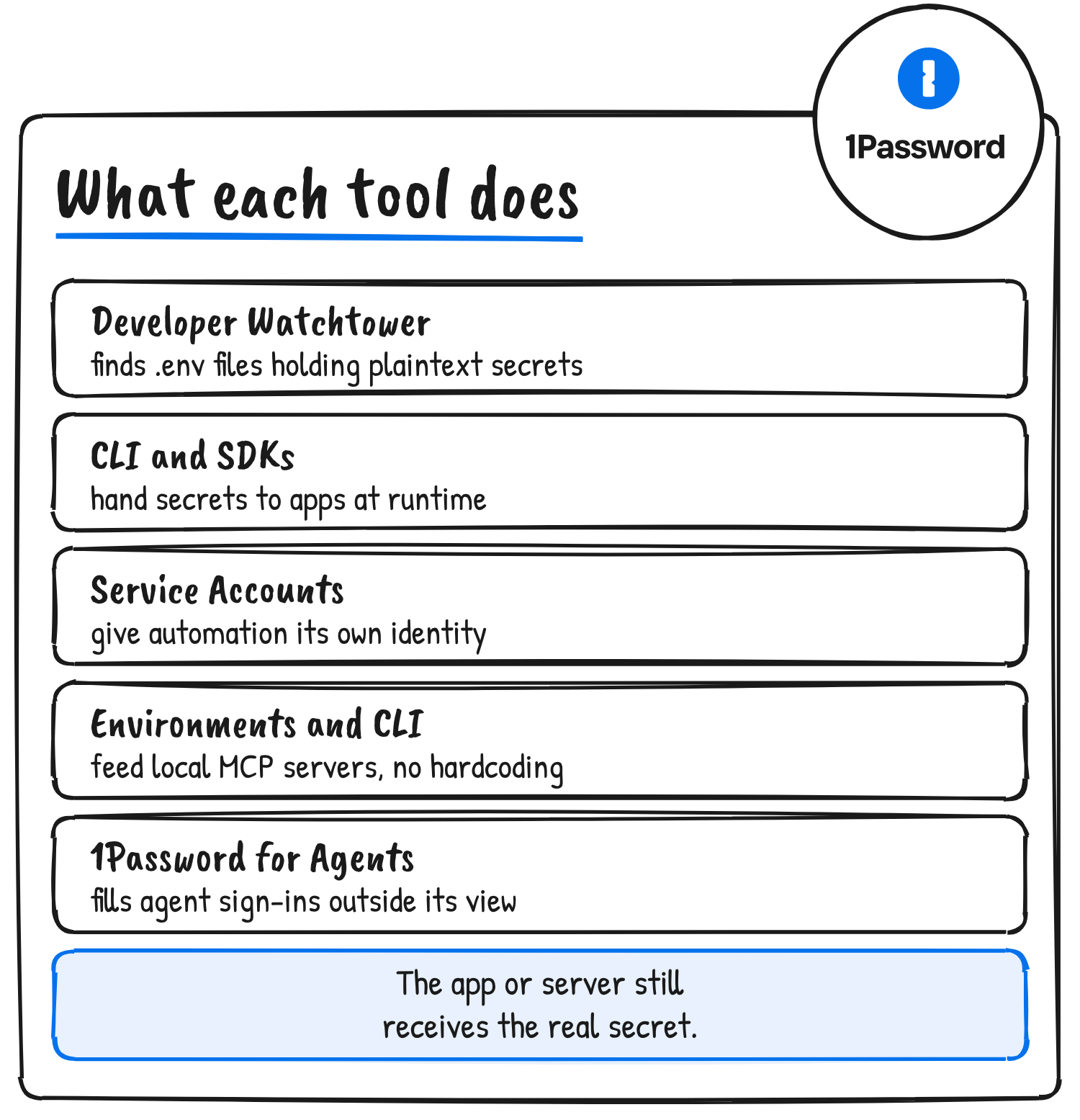
| Product | Step | What the guide says it does | Limit the guide states |
|---|---|---|---|
| Developer Watchtower | 1 | Discovers local .env files with plaintext secrets so they can be imported into Environments | Doesn’t cover repository history; use a separate secret-scanning tool |
| CLI and SDKs | 2 | The CLI supplies secrets as environment variables at runtime; the SDKs give programmatic access | The receiving application still has access to the real values |
| Service Accounts | 3 | Give automation its own identity, with controls over accessible vaults, Environments and actions | Permissions and spending limits on retrieved API keys are set with the issuing providers |
| Environments and CLI | 4 | Supply credentials to locally launched MCP servers without hardcoding them in configuration | The server still receives the real secrets |
| 1Password for Agents | 4 | Fills approved Login credentials for supported personal-agent website sign-ins outside the agent’s view | Doesn’t limit what the agent can do after signing in |
1Password’s own pages add requirements the guide doesn’t repeat. The Developer Watchtower page lists it under 1Password Enterprise Password Manager, with a 14-day free trial. It checks defined locations, the SSH key scan covers ~/.ssh up to three nested directories, discovery runs locally and raw values don’t leave the device. Mounting a protected .env file where the plaintext one sat works on macOS and Linux only.
Environments need an owner or administrator to switch the policy on in the admin console. They run in the 1Password apps for Mac, Windows and Linux, not iOS or Android.
The agent step has the tightest limits
1Password’s support page for 1Password for Agents says the feature is opt-in and needs an individual or family account on 1Password.com. Team and business accounts aren’t supported. Logins have to be Login items in a Personal or Private vault; passkeys, other item types and shared vaults aren’t supported. The page lists five supported agents: Claude Duet, Grok Bot, Instinct, Muse and Town. The 1Password app must be version 8.12.42 or later, on the same device as the agent app.
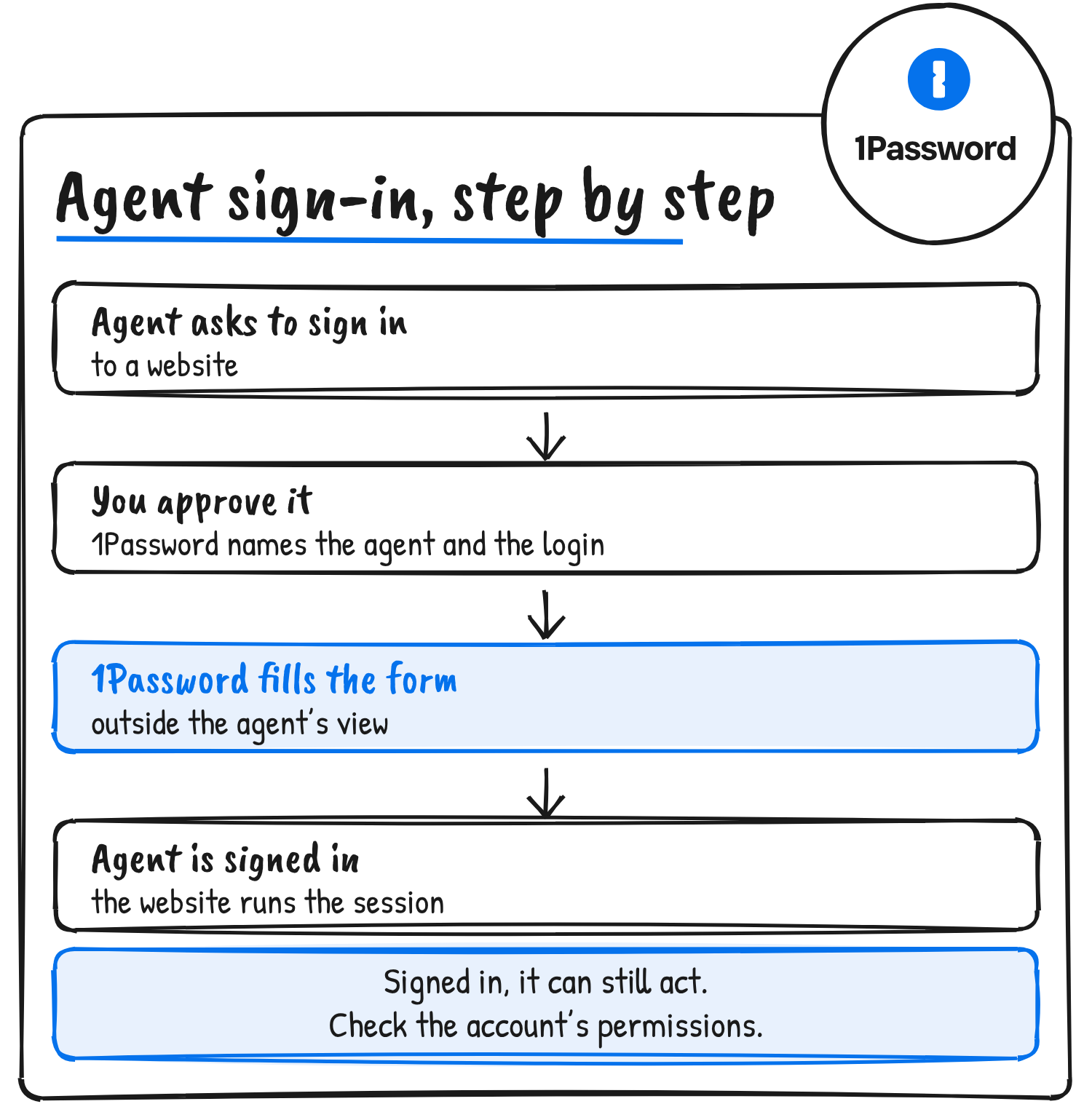
When an agent asks to sign in, 1Password names the requesting app and suggests logins for the site, and you approve, pick a different login or deny. If you approve, the 1Password browser extension fills the username, password and one-time password into the sign-in form outside the agent’s view. After that the website manages the session. The guide’s own caution is that keeping a password outside an agent’s view doesn’t limit what the agent can do once it’s signed in, so it tells readers to review the permissions of the account the agent uses.
Revoking is its own step
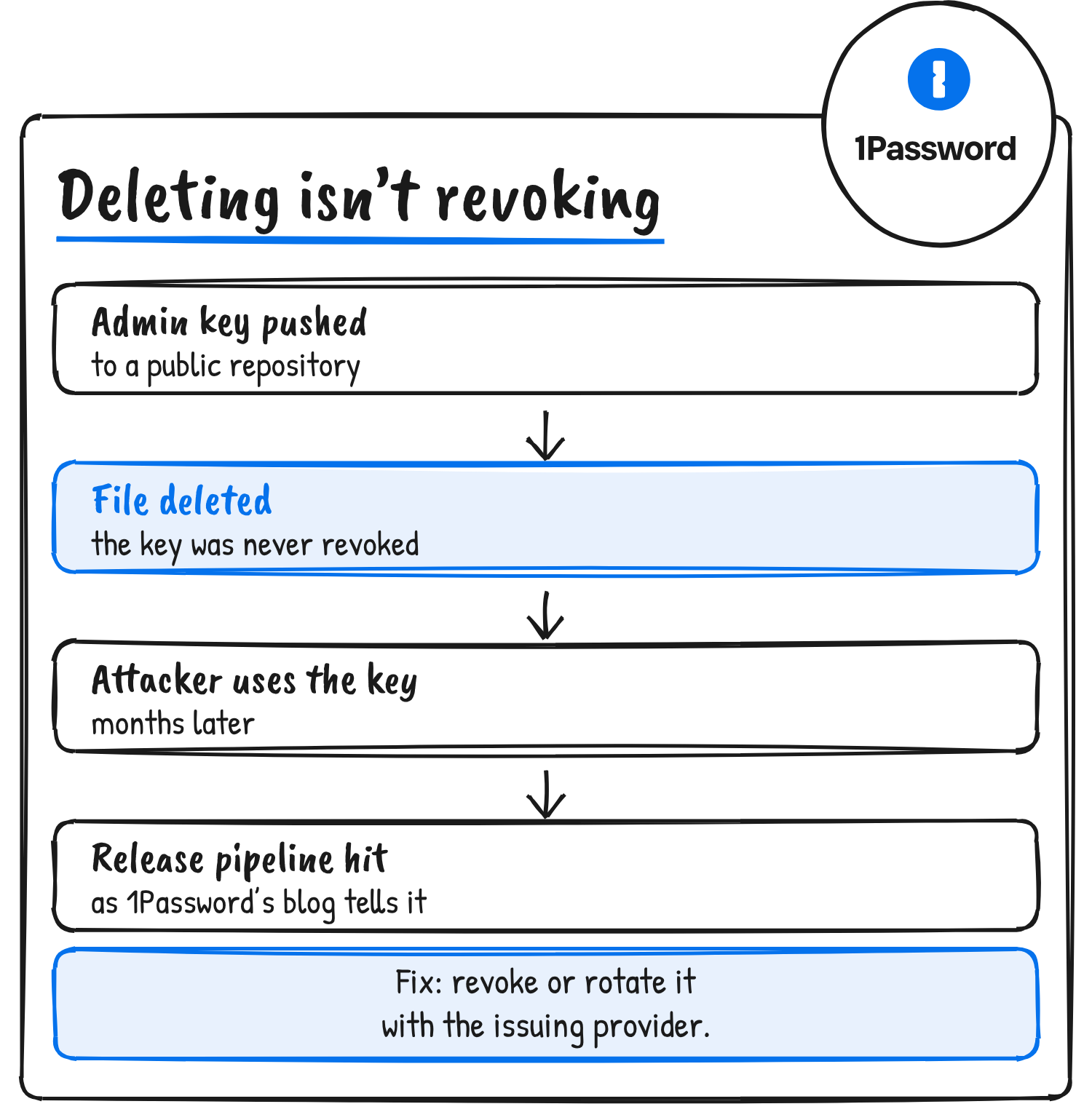
Step 5 carries the point of 1Password’s blog post. That post describes an admin key committed to a public repository. The file was removed but the key wasn’t revoked, and months later an attacker used it in an attack that ultimately compromised a release pipeline. The post doesn’t name the platform. “Deleting a file or moving a secret into managed storage won’t invalidate an existing copy,” it says.
The guide adds that if compromise is suspected, teams should prioritise containment over delaying revocation for a convenient migration, and that existing sessions can need to be ended separately. For replacement, it says to update the new values in Environments or vault items so workflows pick them up on their next read or launch, then revoke the old credentials with their issuing providers and reload any process still holding the previous values.
How it differs from the earlier blog post
The 4 November blog post lists five different steps: reduce plaintext copies, limit each workflow’s access, reduce copies of SSH private keys with an SSH agent, choose how agents receive access, and revoke leaked credentials. The X guide drops the SSH step and adds finding exposed credentials and testing replacement.
The full guide is on X at x.com/i/article/2120602147259633664. Setup instructions for the CLI, project secrets and SSH authentication are in the developer quickstart on 1password.dev.
Discover more from Sulat AI & Tech News
Subscribe to get the latest posts sent to your email.