
ChatGPT dots, OpenAI’s always-on personal agents, can now run commands directly on a computer you connect to them. The change comes from a feature called multi-exec, which pash, who works on Codex and dots at OpenAI, says the company released quietly on Friday. In effect, it cuts out a middleman between the agent and your machine.
A dot lives in the cloud with its own computer and browser, so it keeps working when your laptop is shut. You could already connect your own machine. Multi-exec changes how the dot uses it.
What multi-exec changes
Until now, a dot that needed something done on your computer handed the job off. OpenAI’s documentation describes it as creating local Work or Codex tasks, which you can open separately to see where the work is happening. In a follow-up, pash explained why that held dots back:
This wasn’t possible until a few days ago. Previously, to do ANYTHING on your connected computer, the dot would have to proxy through a separate codex thread.
pash on X
This isn’t in distribution for the model, slow, and basically blocked me from doing anything worthwhile w/ my dot. This lets the dot use codemode directly on your computer. Night and day difference.
In plain terms, the dot no longer has to start a whole new coding session to check the state of a repository. Asked whether it makes dots faster, pash replied: “yes, because it doesnt need to create a separate codex thread just to run “git status””. The phrase “not in distribution” is model-training language: the models weren’t trained to work that way, so they handled the relay badly.
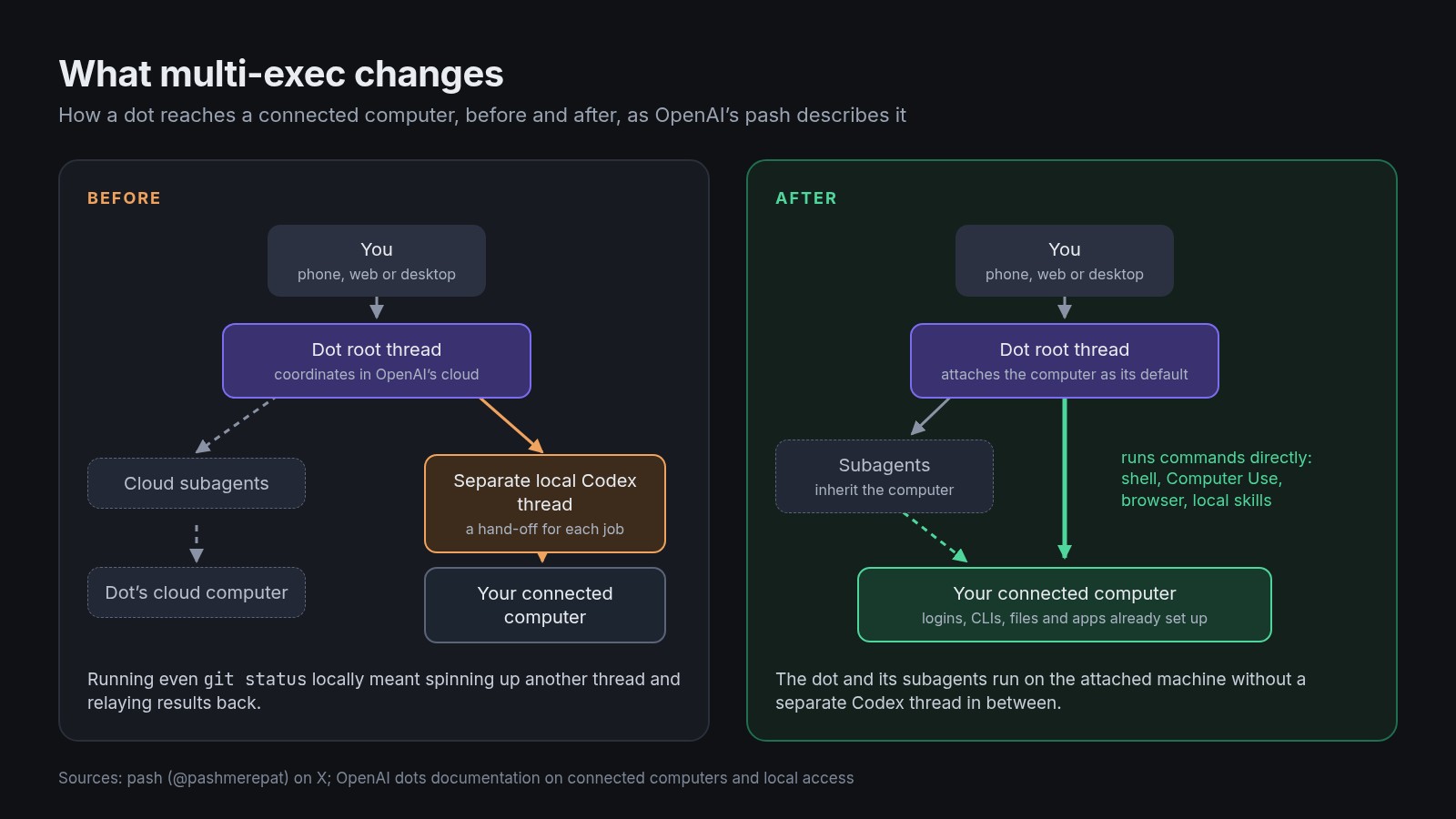
The second half matters as much. When the root thread, the dot’s main conversation, attaches a computer, the subagents it sends off in parallel use the same machine. pash notes that subagents “share context unlike separate threads”, so a dot can split work across several helpers without each one starting cold on a different computer.
That’s also why some early readers were puzzled. Nathan Clark replied that he’d “had the outcomes you’ve described happen already” and guessed the difference was “that the Dot itself can do it rather than hand off to a thread running in Codex”. That’s right. The results were possible before; multi-exec makes them direct.
Why put a dot on your own machine
The cloud computer has real advantages. It keeps working while your devices are off, and OpenAI says it can keep its state between uses. But it’s a separate machine with its own logins, and some websites block cloud browsers. pash’s pitch is that your own computer already has everything set up:
- A powerful machine with persistent storage. His is a maxed-out Mac Studio Ultra.
- Computer Use and browser use on that machine, with websites already logged in and your home internet address.
- Command-line tools installed and authenticated once, such as the Stripe CLI, gcloud and Firebase.
- Skills saved locally for repeated workflows, which subagents can use too, plus any local notes vault such as Obsidian.
- Desktop apps. His dot builds an iOS app end to end in Xcode, tests it by clicking around, and sends him screenshots as it goes.
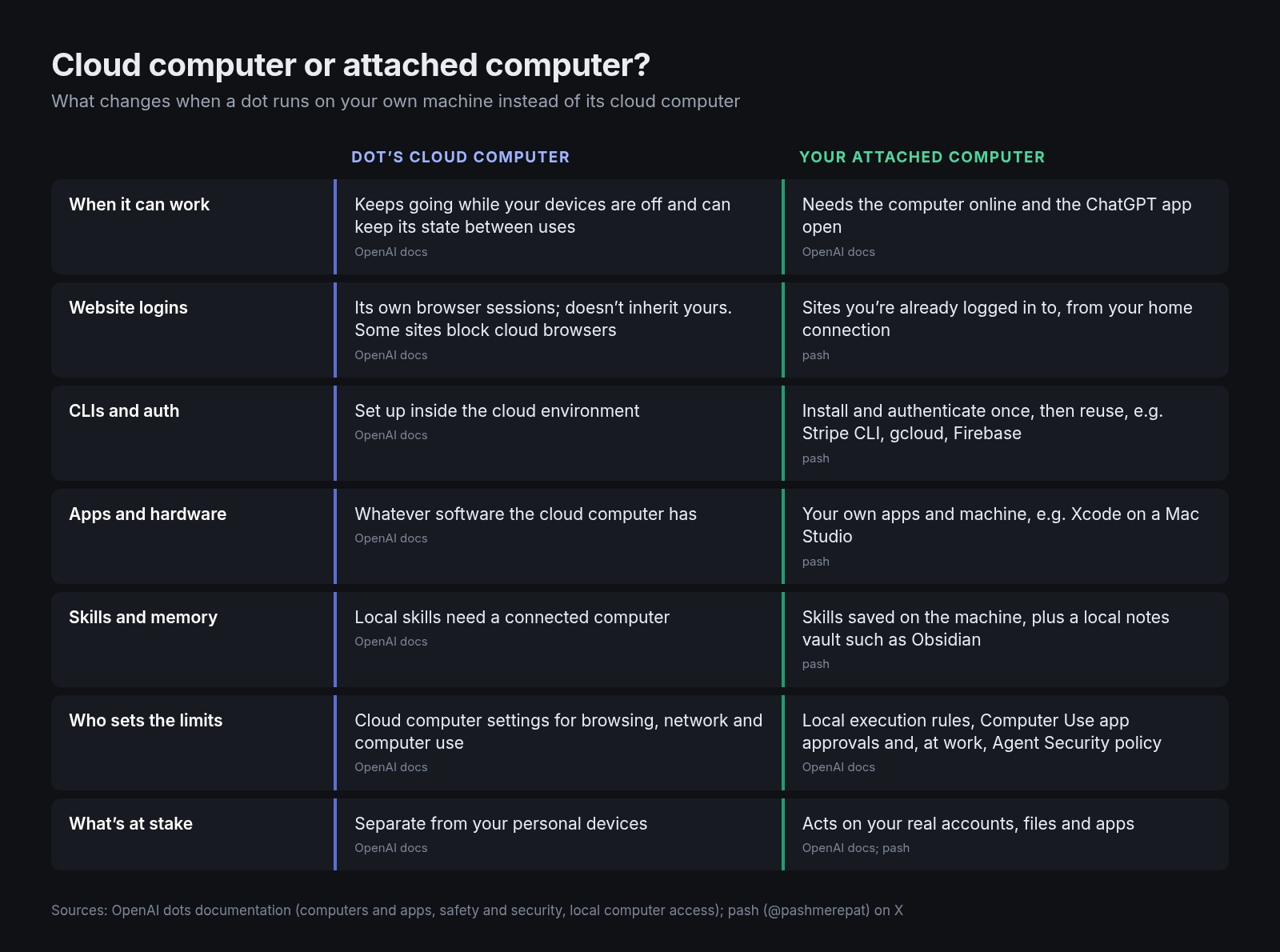
OpenAI’s guide for enterprise admins frames the split clearly. A task has two parts: coordination, which “decides which steps to take and keeps the conversation moving”, and execution, “the work performed by a tool, such as running a shell command”. The dot coordinates in OpenAI’s cloud. With a computer attached, execution happens on that computer, which “must be online and connected”. So you can message your dot from your phone while it builds on your desk machine at home.
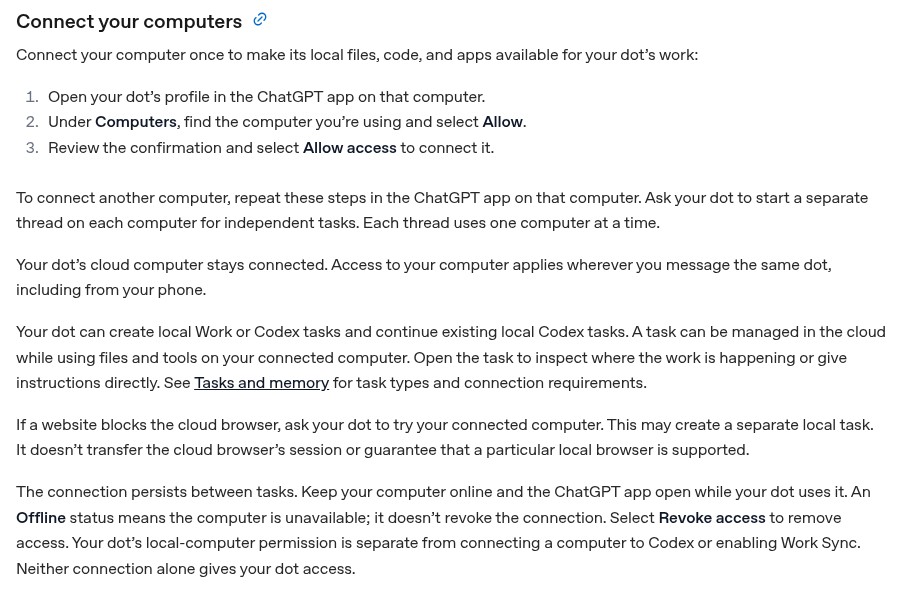
Multi-exec sits on top of the existing way to connect a computer. Dots could already connect several computers, each thread using one at a time. What’s new is that the dot can make one of them its default and run commands there itself.
How to set it up
First connect the computer. In the ChatGPT app on that machine, open your dot’s profile, find the computer under Computers, select Allow, then Allow access. Then tell the dot to attach to it. pash shared the prompt he uses:
"Hey I just connected my computer. Can you attach to it directly so it's your default computer and you can run commands directly on it? Do it in your root thread so that all subagents inherit this computer for running commands. Run whoami to run water through the pipes and verify it works end to end."Each part has a job. “Default computer” stops the dot reaching for its cloud machine. “Root thread” makes subagents inherit the attachment. And whoami, which prints the current user, is a harmless test that proves commands really run on your machine.
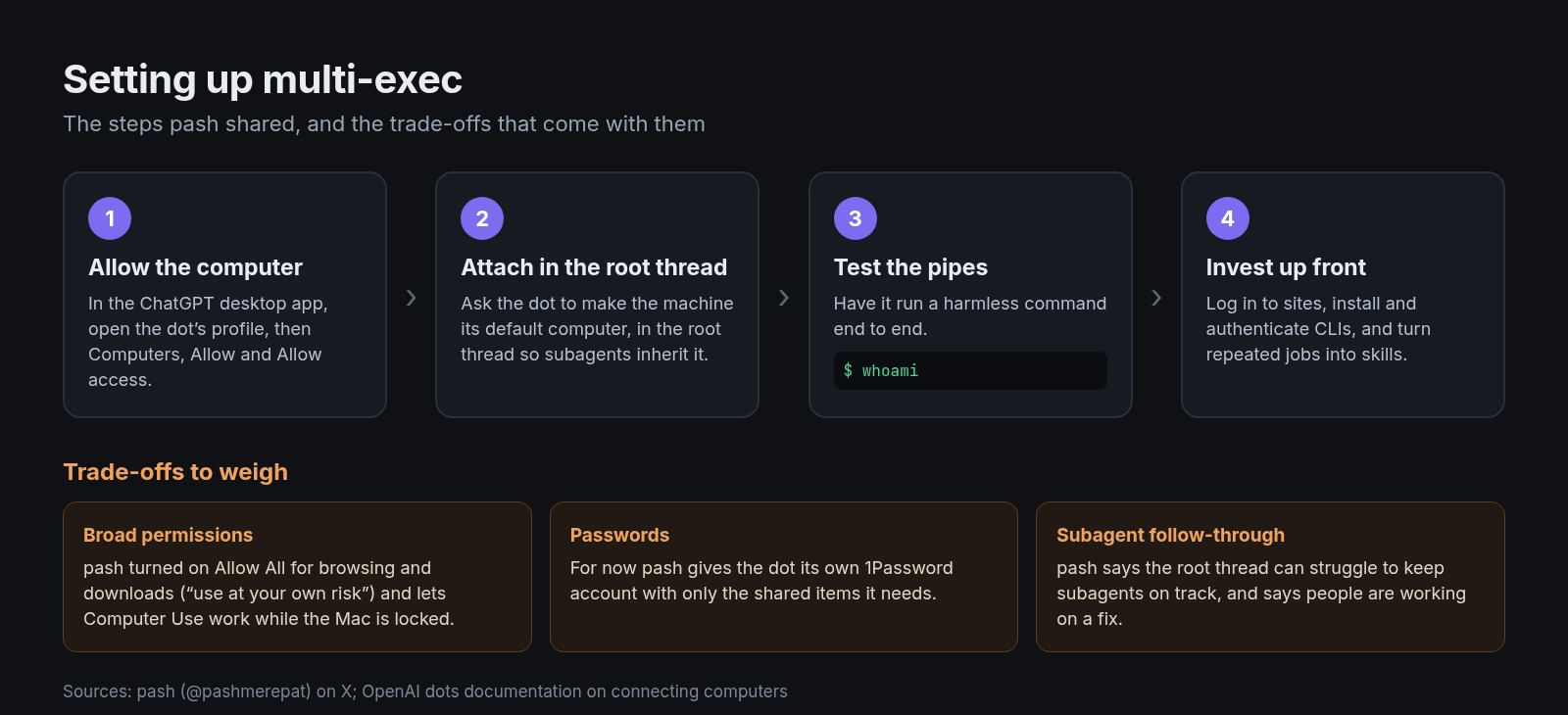
He suggests using the most powerful machine you have and putting in the work up front: log in to the email accounts and websites the dot will need, install and authenticate your tools, and make sure Computer Use is on and allowed to work while the computer is locked. His strongest advice is to turn repeated jobs into skills and test them with subagents until they’re reliable. Elsewhere in the thread, he described how:
What people are doing with it
Other people at OpenAI picked it up quickly. Nick Baumann called it “so much alpha” for anyone “taking the dot pill”. Daniel Steigman, who builds Codex, said that with a password manager his dot can handle errands from his computer:
Outside OpenAI, developer Joe Defendre connected a MacBook Pro and an M4 Mac mini and put the dot to work on two codebases:
The trade-offs
Running an agent on your real computer means it acts with your real accounts, files and apps. pash is open about how far he went. He turned on “Allow All for Browsing and Downloads” so his dot could download from any website without asking about each domain, and labelled it “use at your own risk”.
OpenAI’s own controls still apply. Before a dot takes an action that could affect your accounts or share information, an automatic review checks it against your instructions and permissions and decides whether it can go ahead, needs your approval, or is something you must do yourself. Computer Use asks before using each app unless you choose “Always allow”. You can revoke a computer’s access from the dot’s profile at any time. In Enterprise workspaces, admins have to turn on local computer access, and Agent Security policy governs what a dot can run on employees’ machines.
Passwords are the clearest gap. One user, Andrew, replied that until a dot can enter passwords itself, the feature “just means handholding on multiple devices”. pash’s workaround is to give the dot its own password manager account:
Others want built-in options, from Apple Keychain and Bitwarden support to an OpenAI-made password vault. Tiago Freitas, a startup founder, raised two problems:
pash has acknowledged a related weak spot. “The root thread can struggle to stay on top of its subagents,” he wrote, “and if a subagent doesn’t complete something, it lacks the followthrough to prompt it back in shape.” He added that “there are smart people working on fixing this.”
Not everyone can try it yet, either. Replies from the UK and Europe asked when dots would reach them at all. For people who can, the change is simple to describe: the dot stops handing work to someone else and does it itself.
Discover more from Sulat AI & Tech News
Subscribe to get the latest posts sent to your email.