
OpenAI says Codex runs your commands inside an operating-system sandbox on your own machine instead of a separate container, and that the default profile keeps network access off. OpenAI Developers laid out the design in a thread on X on 19 November NZ time, with a link to an OpenAI post titled Inside the Codex sandbox.
The thread’s first post gives the reason: as models get more capable, limits on what they can reach matter more. OpenAI’s example is that a command editing your repo shouldn’t automatically get network access.
As models become more capable, limits on what they can access matter more. A command editing your repo shouldn’t automatically be allowed network access.
— OpenAI Developers (@OpenAIDevs) November 18, 2026
The Codex sandbox lets Codex run commands in your existing environment within the filesystem and network limits you control.
What the default profile allows
When a Git repository is the workspace for a Codex session, the default permission profile lets Codex edit source files without asking, but blocks writes to the root .git and .codex folders, OpenAI says. It also allows broad reads across the filesystem. The approvals and security docs add that .agents and .aws get the same protection when they exist, and that it’s recursive, so everything under those folders is read-only.
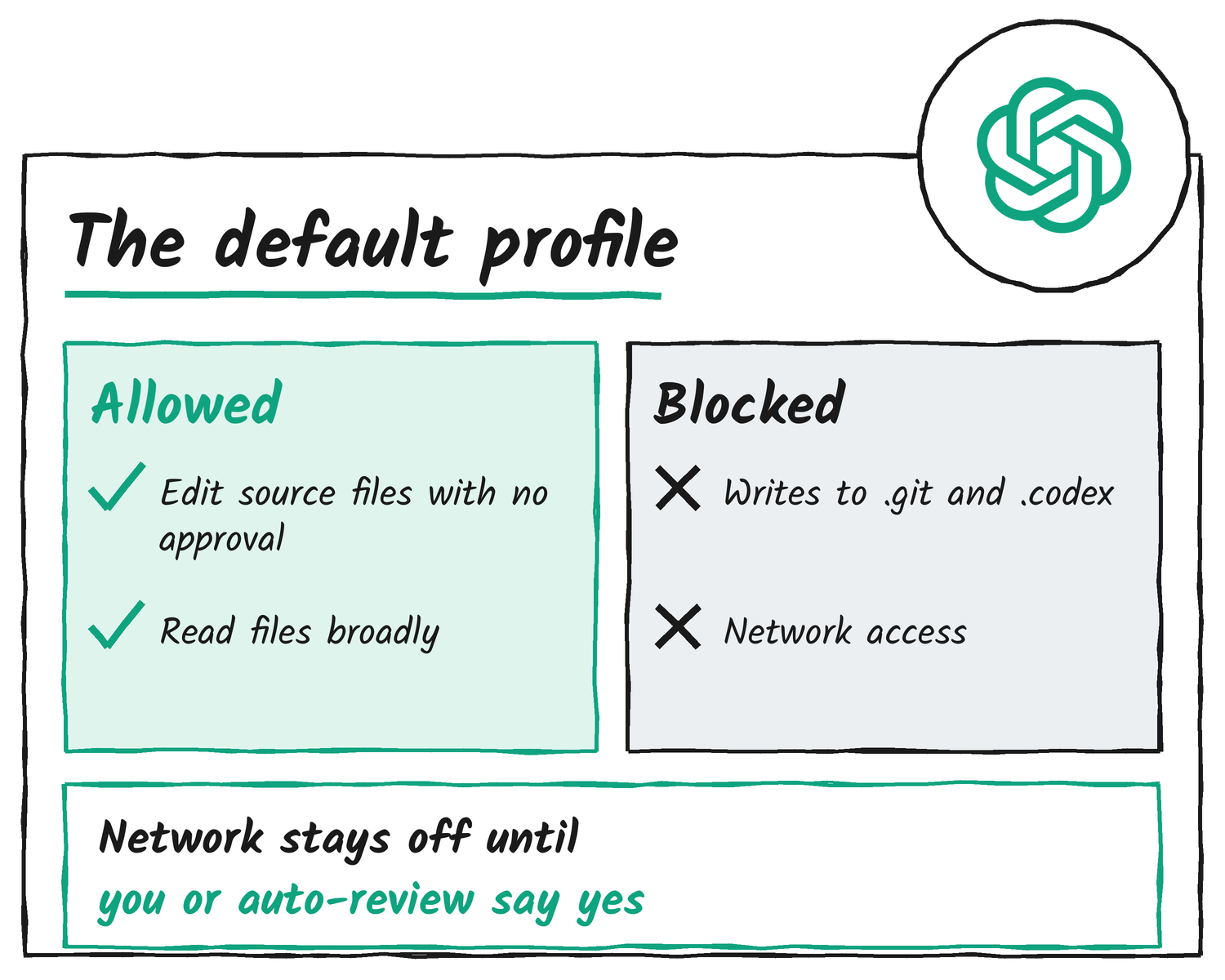
A permission profile is a named policy that pairs filesystem rules with network rules. Codex ships three built-in ones: :read-only, :workspace and :danger-full-access, which removes the local sandbox restrictions. You can write your own under [permissions.<name>], or start from a built-in with extends = ":workspace" so the protected paths stay read-only unless you override them. The permissions page labels profiles a beta, and says a config uses either profiles or the older sandbox_mode setting, never both.
Why it uses the OS and not a container
Instead of moving the work into a separate container, Codex has the operating system constrain each command in the environment you already use, OpenAI says. Its example is building an iOS app on a Mac with Codex. The sandbox covers spawned commands, not only Codex’s own file operations, so git, package managers and test runners inherit the same limits, according to the sandbox docs.
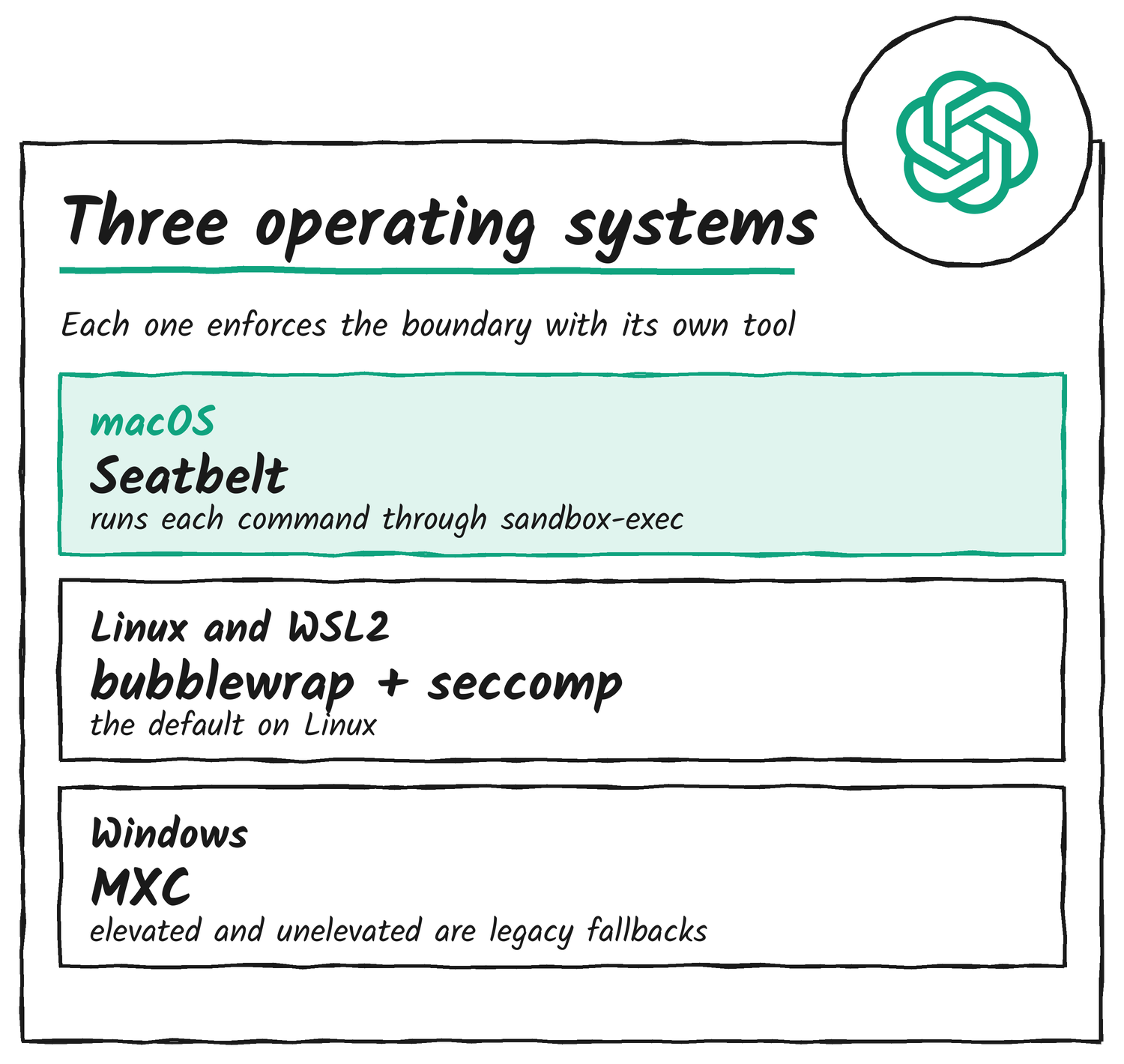
Each operating system does the enforcing its own way. On macOS, Codex uses Seatbelt, Apple’s built-in sandbox, and runs commands through sandbox-exec. On Linux it uses bubblewrap (bwrap) plus seccomp, a Linux feature that filters which system calls a process can make. Windows uses MXC, with elevated and unelevated modes kept as legacy fallbacks, and WSL2 uses the Linux version.
On macOS, if the platform sandbox can’t enforce the selected policy, Codex refuses to run the command instead of running it unsandboxed, the permissions docs say. Linux users install bubblewrap first. Codex uses the first bwrap it finds on the path and otherwise falls back to a bundled helper, which needs support for unprivileged user namespaces.
OpenAI wrote up the Windows side on 13 May in Building a safe, effective sandbox to enable Codex on Windows. It says Windows doesn’t provide this kind of isolation out of the box, so OpenAI built its own, and that every Codex command is sandboxed from the start with every descendant process staying inside the same boundary.
Network access stays off until you open it
The default profile disables network access. When a command asks for it, Codex can prompt you directly or route the request to auto-review, OpenAI says. If your build regularly downloads from a package registry, you can allow that registry’s domain in a permission profile and skip the prompt.
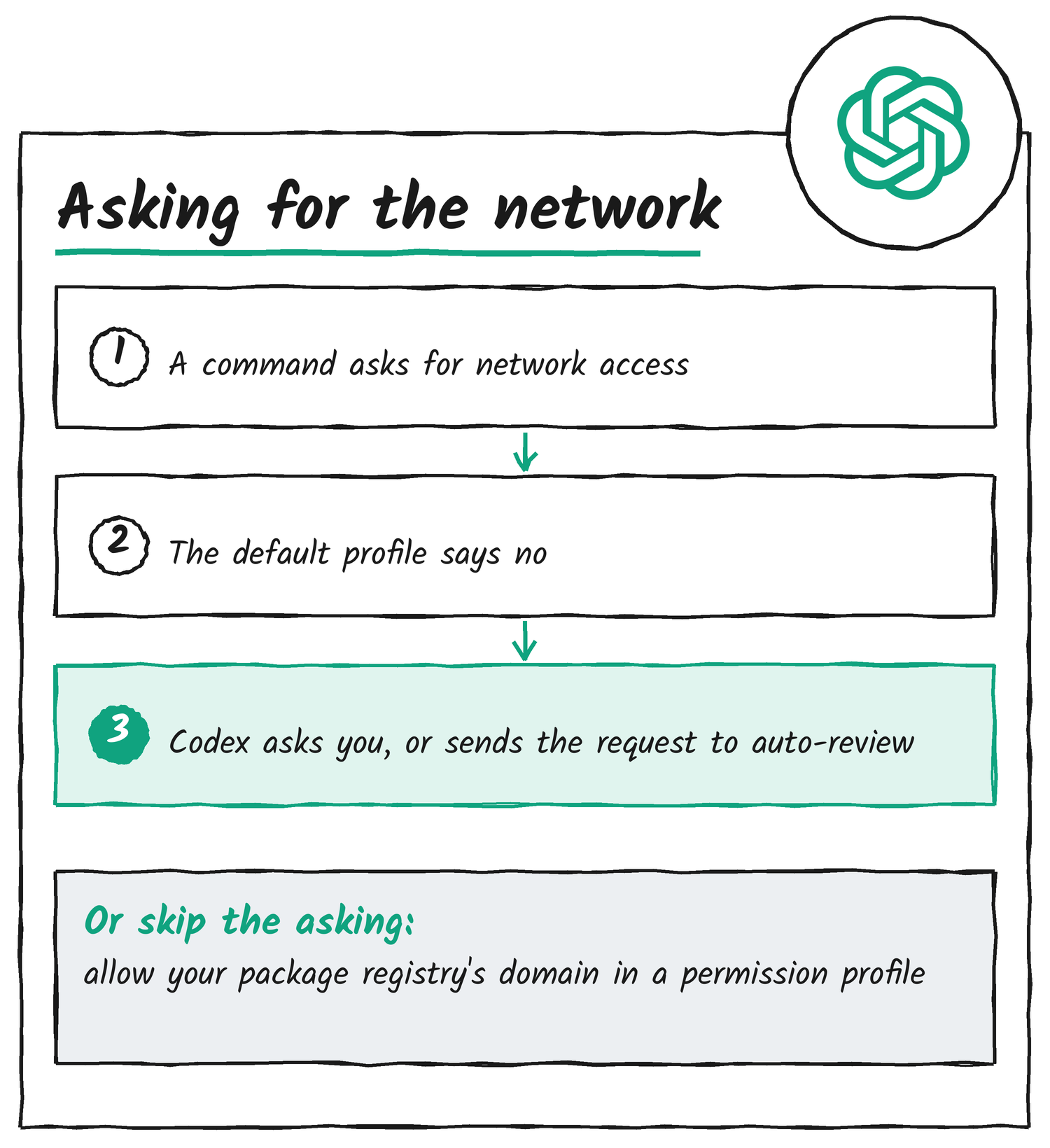
Two settings do the work. network.enabled = true in a profile lets commands reach the network, and features.network_proxy = true makes Codex enforce the profile’s domain rules. With the network on and the proxy off, commands connect directly with no domain limits. In the domain list, "example.com" matches that exact host, "*.example.com" matches subdomains only, "**.example.com" matches the apex and its subdomains, and a deny rule beats an allow rule.
OpenAI’s permissions docs show a profile that builds on :workspace, keeps matching .env files denied and allows one API domain:
default_permissions = "project-edit"

[features]
network_proxy = true

[permissions.project-edit]
description = "Project editing with OpenAI API access."
extends = ":workspace"

[permissions.project-edit.filesystem.":workspace_roots"]
"**/*.env" = "deny"

[permissions.project-edit.network]
enabled = true

[permissions.project-edit.network.domains]
"api.openai.com" = "allow"
Auto-review answers the prompts
Auto-review picks who answers an approval prompt, and it doesn’t move the sandbox boundary. With approvals_reviewer = "auto_review", Codex sends eligible approval requests to a separate reviewer agent instead of stopping for you. If the reviewer approves, the command runs. If it denies, the main agent is told to find a materially safer path or stop and ask you. Actions the profile already allows run without review.
The docs list what triggers a review: requests for escalated sandbox permissions, commands that match a rule set to prompt, network requests to destinations that need approval, file edits outside the writable roots, and MCP or app tool calls that need approval. The reviewer is built to block sending private data, secrets or credentials to untrusted destinations, probing for credentials, tokens or cookies, broad or lasting security weakening, and destructive actions that risk irreversible damage.
OpenAI applies the same limits to its own deployment. In its 8 May post Running Codex safely at OpenAI, it says it doesn’t give Codex open-ended outbound access: its managed network policy allows expected destinations, blocks others and requires approval for unfamiliar domains.
Test a profile before you rely on it
The Codex CLI has a sandbox command that runs a command under a profile so you can see what gets blocked. It’s also available as codex debug, and the macOS version also takes a --log-denials flag.
# macOS
codex sandbox macos [--permissions-profile <name>] [--log-denials] [COMMAND]...
# Linux
codex sandbox linux [--permissions-profile <name>] [COMMAND]...
# Windows
codex sandbox windows [--permissions-profile <name>] [COMMAND]...
The full profile syntax, including filesystem globs and the managed settings for organisations, is on the permissions page.
Disclosure: I’m an OpenAI, Firecrawl and Devin ambassador.
Discover more from Sulat AI & Tech News
Subscribe to get the latest posts sent to your email.