
tldraw launched an MCP server on 24 November that lets an AI agent create, read, draw on and comment in the files in your tldraw.com account. It’s the third time in nine months tldraw has put agents on its canvas, and the first time it’s offered as one server for any agent, not tied to a single chat app. Here’s what shipped, how to connect it, what I ran myself, and how it compares with Miro, FigJam and Excalidraw.
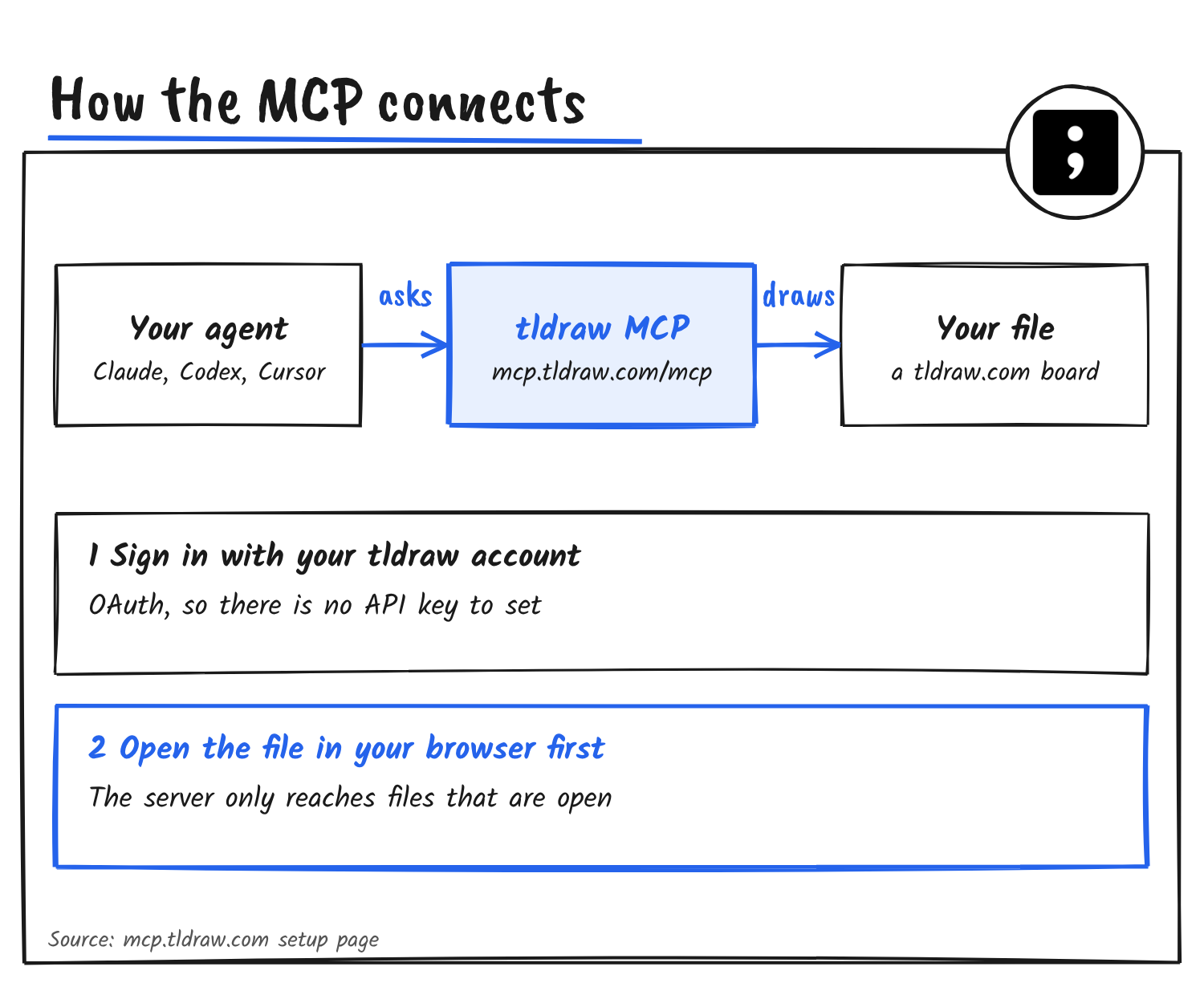
The short version: you add mcp.tldraw.com/mcp to your agent, sign in with your tldraw account, and the agent can then see the files you can see. tldraw’s page says to keep a file open in tldraw while the agent works on it. I couldn’t find limits or plan requirements for the server on tldraw’s pages. I haven’t signed in to it myself, so I haven’t tested its tools.
- What shipped on 24 November
- How to connect it
- The third tldraw MCP in nine months
- Comments are the interface
- An intro to tldraw: the app, the SDK and the company
- Licence and pricing
- What I ran
- Where it sits against Miro, FigJam and Excalidraw
- What to check before relying on it
What shipped on 24 November
In the launch post, product manager Tim Gilboy says the server is “probably one of our most requested features”. It connects your tldraw.com account to an agent so the agent can create boards, look up any file you have access to, and use those files as context for other work. tldraw’s announcement thread on X adds that the agent can draw on the canvas and comment, and that you can leave a comment for the agent to pick up next time.
Every file your agent works on is a real tldraw.com file, saved to your account.
tldraw, launch post, 24 November 2026
That makes the output an ordinary file you can open in a browser, share with a colleague and edit by hand, not a picture trapped in a chat window.
tldraw’s own use cases, from the launch post and the server page:
- Visualise how a product fits together, then use comments on the diagram to drill into one part with the agent.
- Explain a complex topic with a quick diagram instead of a wall of text.
- Sketch a lightweight wireframe yourself, then point the agent at it to build it.
- Run a team retro on a file and have the agent work out the order to discuss the voted items in.
- Have an agent diagram state machines from a codebase, or implement a feature from an architecture diagram that lives in tldraw.

How to connect it
tldraw’s page says it works with Claude, Codex, Cursor, VS Code, Gemini CLI and Antigravity, and gives a recipe for each. I haven’t run these, so they’re tldraw’s instructions as published, not my test.
- Add the server URL
https://mcp.tldraw.com/mcpto your agent. It’s a remote server, so there’s nothing to install. - Sign in with your tldraw account when the client prompts you.
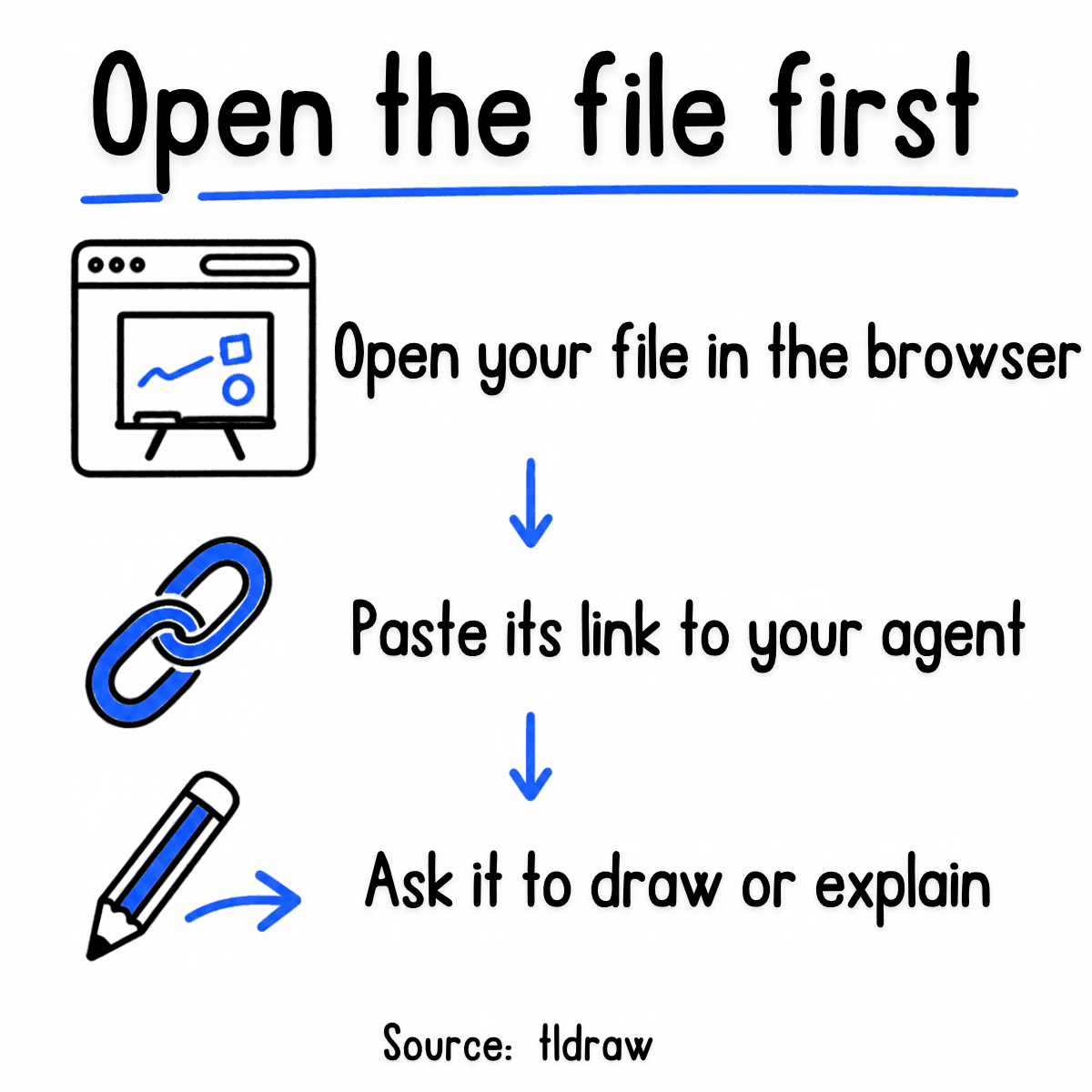
- Open the tldraw file you want the agent to work on, and keep it open in the browser.
- Ask the agent to draw, read or comment, and paste the file’s link if you want it on a specific file.
Claude Code, per tldraw:
claude mcp add --transport http tldraw https://mcp.tldraw.com/mcp
# then run /mcp inside Claude Code, pick tldraw and sign in
Cursor, in ~/.cursor/mcp.json:
{ "mcpServers": { "tldraw": { "url": "https://mcp.tldraw.com/mcp" } } }Gemini CLI, then /mcp auth tldraw inside the CLI:
gemini mcp add --transport http tldraw https://mcp.tldraw.com/mcpClaude Desktop uses Customize, then Connectors, then Add custom connector, with the same URL. Codex CLI uses codex mcp add tldraw --url https://mcp.tldraw.com/mcp followed by codex mcp login tldraw. For ChatGPT, tldraw says Developer mode needs a paid plan. VS Code and Antigravity have their own one-liners on the server page.
The third tldraw MCP in nine months
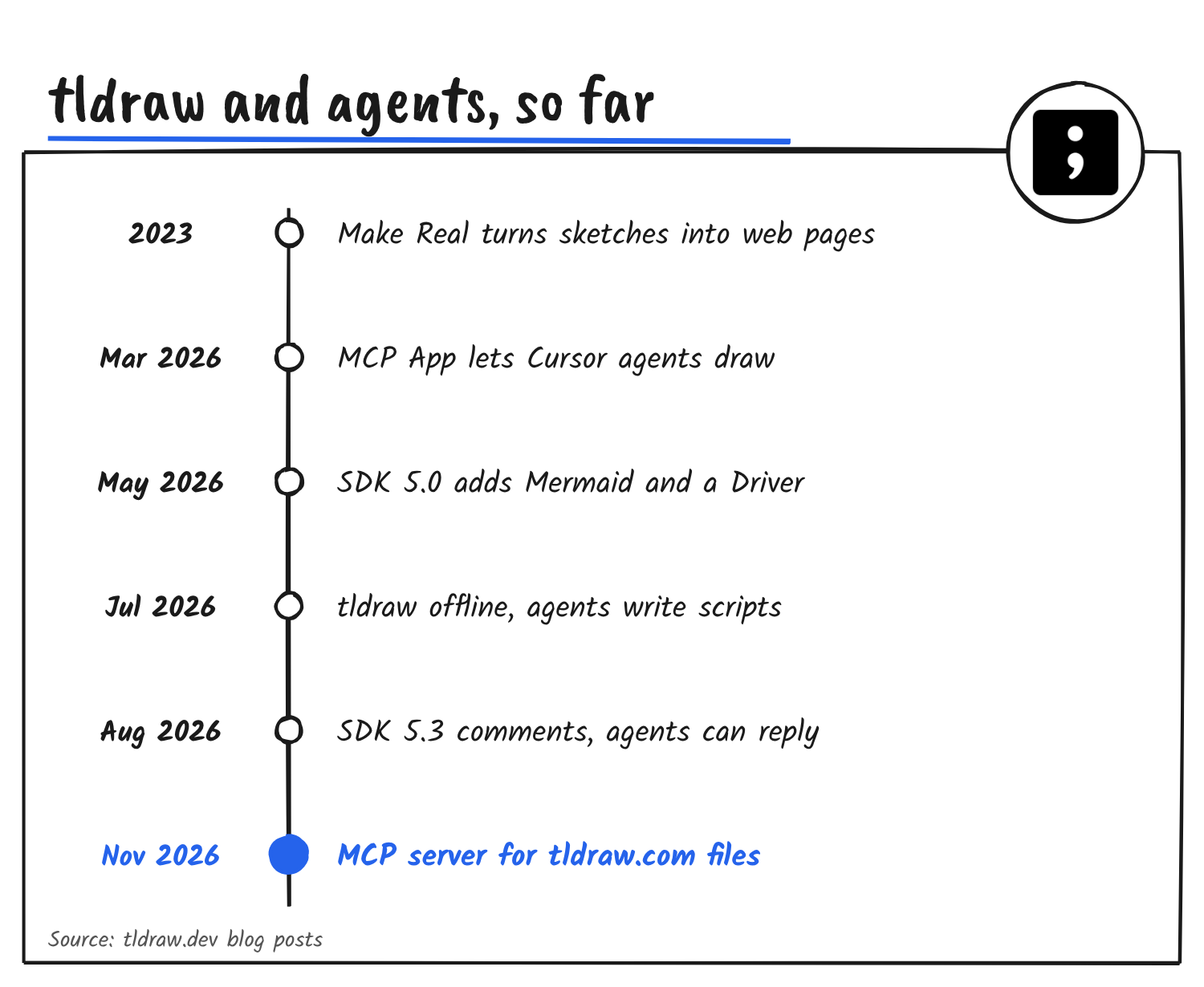
This isn’t tldraw’s first MCP. On 3 March Steve Ruiz announced the tldraw MCP App in Cursor, an MCP App that returned an interactive canvas. His post described three tools: create shapes, edit shapes and delete shapes. On 29 September tldraw launched a plugin for ChatGPT and Codex, built on OpenAI’s MCP extension, where every board is already a real tldraw.com file. The November server is described as native to tldraw, and tldraw says its Codex plugin still works.
The difference is reach. The March app and the September plugin each lived inside particular chat apps. The new server is one URL that any MCP client can add, behind a tldraw sign-in, which is why tldraw can pitch it as an agent that reads last week’s project plan and updates it.
Comments are the interface
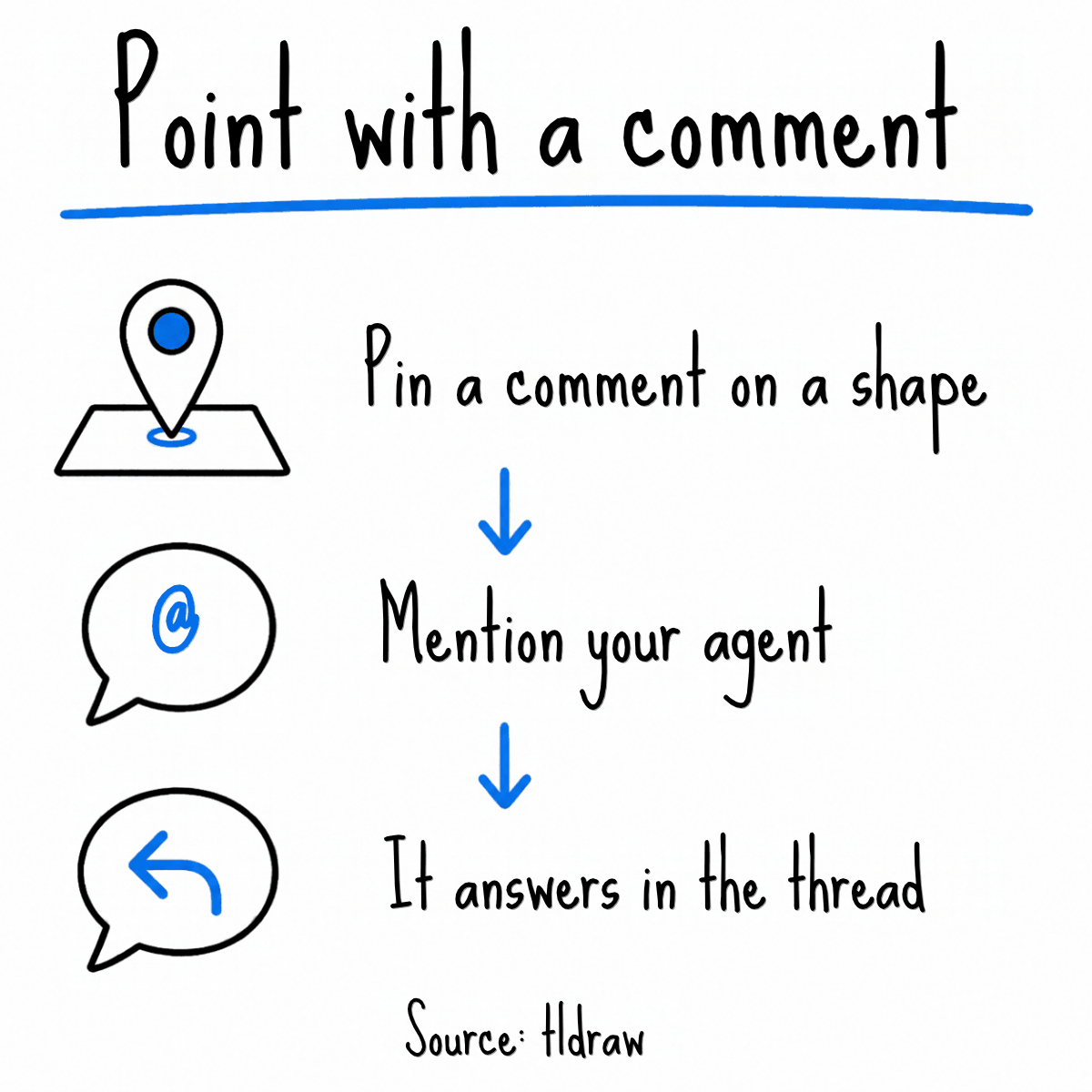
The part of this I find most useful is comments. tldraw’s page says your agents can work and comment on your files “just like you can”, including implementing and responding to feedback colleagues leave on a file. A pinned comment tells the agent exactly which shape you mean, which a chat message can’t. On the SDK side, comments arrived as a @tldraw/commenting package in version 5.3, so a team building its own canvas can offer the same thing.
An intro to tldraw: the app, the SDK and the company
If you haven’t met tldraw, there are four things with the name, and they’re easy to confuse.
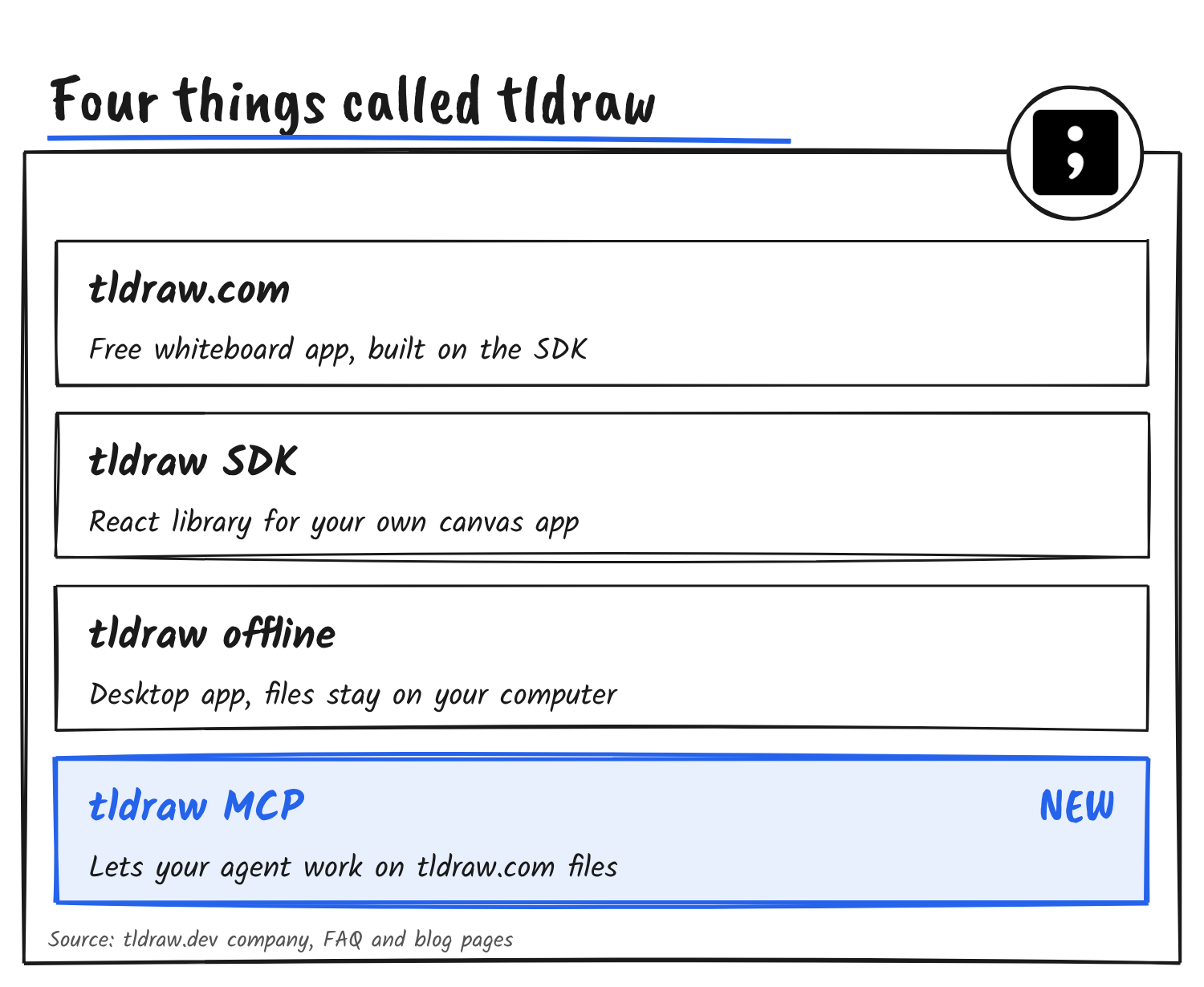
- tldraw.com is a free online whiteboard. It’s the demo that grew into a product, and the MCP server works on its files.
- The tldraw SDK is a TypeScript library for building infinite-canvas apps in React. Companies embed it in their own products.
- tldraw offline is a free desktop app that saves
.tldrawfiles locally. - The MCP server connects agents to tldraw.com files.
The company behind it is tldraw Inc., a London-based startup founded in 2022 by Steve Ruiz, according to tldraw’s own pages. Ruiz’s about page describes a Series A company backed by Lux, Definition and Amplify, and says tldraw.com had close to 500,000 monthly active users. That’s his figure and it’s undated. tldraw’s site lists customers including Autodesk, ClickUp, Padlet, Replit and Google, and shows 51.6K GitHub stars and about 750,000 weekly downloads. Those are the company’s claims.
Licence and pricing
The SDK is source available, not open source. Since version 4.0 in September 2025, it ships under the tldraw licence, which allows development use only. Per tldraw’s docs, production use needs a licence key, and the keys are checked on the client with no call to a licence server.
| Licence | Watermark | Duration | Who it’s for |
|---|---|---|---|
| Trial | No | 100 days | Evaluation, one per company or project |
| Commercial | No | Annual | Production use in commercial apps; priced through sales |
| Hobby | Yes | Varies | Non-commercial projects; discretionary, reviewed case by case |
The docs say development works without a key on localhost, loopback addresses, non-HTTPS pages or any build where NODE_ENV isn’t production. Commercial licences send no usage data back, while hobby, trial and unlicensed use do send the SDK version and page URL.
What I ran
I tested the SDK, since that’s the part I could verify without an account. I installed tldraw with Vite and React, with install scripts switched off, and rendered the editor with two shapes and an arrow created through the editor API. I did not run npm create tldraw, because my environment blocked the scaffolder.
import { createRoot } from 'react-dom/client'
import { Tldraw, createShapeId } from 'tldraw'
import 'tldraw/tldraw.css'

function App() {
  return (
    <div style={{ position: 'fixed', inset: 0 }}>
      <Tldraw onMount={(editor) => {
        const a = createShapeId(), b = createShapeId()
        editor.createShapes([
          { id: a, type: 'geo', x: 100, y: 100, props: { w: 200, h: 100, geo: 'rectangle' } },
          { id: b, type: 'geo', x: 450, y: 160, props: { w: 200, h: 100, geo: 'ellipse' } },
          { type: 'arrow', x: 300, y: 150, props: { start: { x: 0, y: 0 }, end: { x: 150, y: 60 } } },
        ])
      }} />
    </div>
  )
}

createRoot(document.getElementById('root')).render(<App />)- Both the dev server and a production build rendered the three shapes and 29 tool buttons.
- On localhost the canvas showed a “Get a license for production” notice in the bottom right, as the licence docs describe.
- The production bundle came to 2,008 kB, or 601 kB gzipped.
- My first attempt failed because I passed an undefined
richTextprop on a geo shape; removing it fixed the error. The editor’s shape props are strict.
What I didn’t run: the MCP server. I haven’t signed in to it, so I can’t say how well any of its tools behave, how it handles a large file or whether it rate-limits you. Everything above about the server comes from tldraw’s pages.
Where it sits against Miro, FigJam and Excalidraw
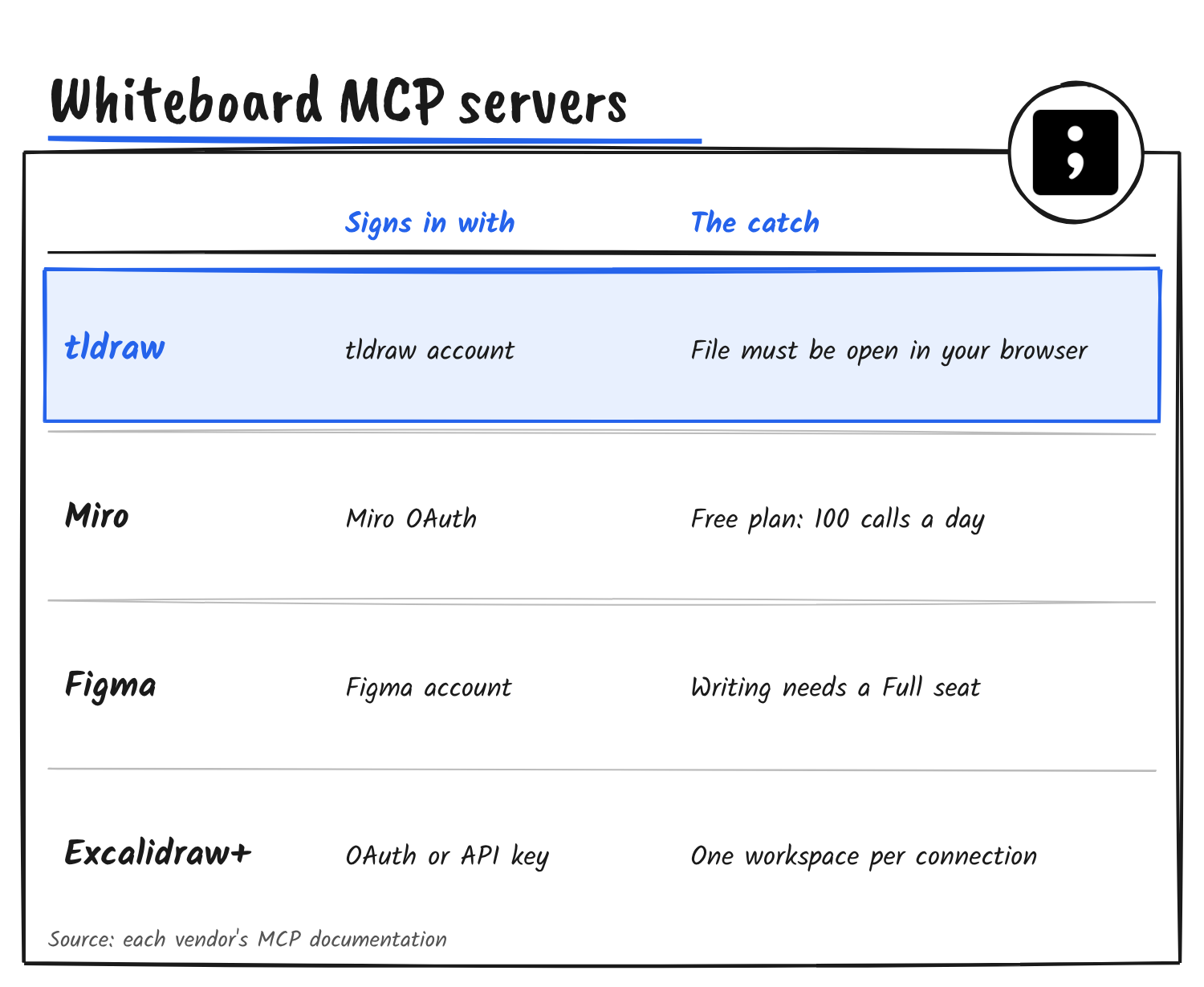
Miro, FigJam and Excalidraw each have an agent route too, and each involves signing in. What differs is the catch, described here from each vendor’s own pages.
| Product | How an agent connects | The catch, per its own pages |
|---|---|---|
| tldraw | Remote server at mcp.tldraw.com/mcp, OAuth with a tldraw account | Agent sees only files you can see; keep the file open in the browser; no limits stated on its pages |
| Miro | Remote server, OAuth 2.1 | Daily call limits that depend on your plan |
| FigJam (Figma) | Figma’s remote MCP server | Write access needs a Full seat; free during the beta |
| Excalidraw | MIT-licensed MCP App at mcp.excalidraw.com, plus a separate Excalidraw+ MCP using OAuth or an API key | The Excalidraw+ server connects to one workspace per connection |
Two structural differences matter more than the feature lists. First, licence: Excalidraw’s MCP App is MIT-licensed, while tldraw’s SDK is source available with a production key, and Miro and FigJam are closed products. Second, where the agent’s output lives. tldraw saves it as a normal file in your account, while an MCP App renders a canvas in the chat. Which suits you depends on whether you want a shareable file or a quick sketch.
What to check before relying on it
A five-point check before you connect it
Who can see what. The agent sees every file you can, so a shared workspace may expose more than you intend. Try it on a scratch file first.
Keep the file open. tldraw says to keep a file open in tldraw while the agent works on it, so don’t expect it to edit a closed file in the background.
Limits and plans. I couldn’t find rate limits or plan requirements on tldraw’s pages. Check with tldraw before building a workflow on it.
Retries. Ask the agent to move or rewrite shapes, and watch for duplicates if a call times out and runs twice. That’s a general risk with agent edits, not a documented tldraw behaviour.
Licence for SDK use. Building your own canvas on the SDK needs a key in production.
For a newcomer the order is simple: use tldraw.com free, connect an agent to a scratch file, and only look at the SDK licence if you plan to embed the canvas in a product.
Sources: tldraw, launch post / tldraw MCP server page / tldraw on X / tldraw MCP App / tldraw for ChatGPT and Codex / tldraw pricing / tldraw licence keys / tldraw FAQ / Steve Ruiz
Disclosure: I’m an OpenAI, Firecrawl and Devin ambassador.
Discover more from Sulat AI & Tech News
Subscribe to get the latest posts sent to your email.